Overview
In a Linux environment, checking hidden configuration files or file permissions is the first step in system administration and development. In this article, we introduce how to quickly and accurately check even hidden files using the ls -al command, along with essential practical options. Master file permissions and sorting tips through terminal hands-on practice.
1. Linux File System and Concept of Hidden Files (.), and the -a Option
mkdir -p ~/ls_practice && cd ~/ls_practice command creates the directory required for practice and navigates to that location.
After creating the directory with mkdir, it continuously executes the cd command using the && operator to move to it.
As a result of execution, the directory is successfully created at the specified path and the current working directory changes.
⚙️ [Key Options]
-p : Creates parent directories as needed and does not throw an error if the directory already exists.-m : Sets access permissions directly when creating a directory.-v : Outputs detailed information about the directory creation process to the screen.

touch sample_file.txt command creates a new general text file for practice.touch is originally a command used to modify file timestamps, but if the file does not exist, it creates a new 0-byte empty file.
As a result of execution, an empty sample_file.txt file with no content is created in the current directory.
⚙️ [Key Options]
-a : Changes only the access time of the file.-m : Changes only the modification time of the file.-c : Does not create a new file if the specified file does not exist.-r : Changes timestamp settings to match another specified reference file.

touch .hidden_config command creates a hidden file by prepending a dot (.) to the file name.
In the Linux file system, files or directories whose names start with a dot (.) are treated as hidden items for system configuration.
As a result of execution, a hidden configuration file .hidden_config, which is not easily visible through standard methods, is created.
⚙️ [Key Options]
-a : Changes only the access time of the file.-m : Changes only the modification time of the file.-c : Does not create a new file if the specified file does not exist.-t : Sets the timestamp to a specified time format instead of the current time.

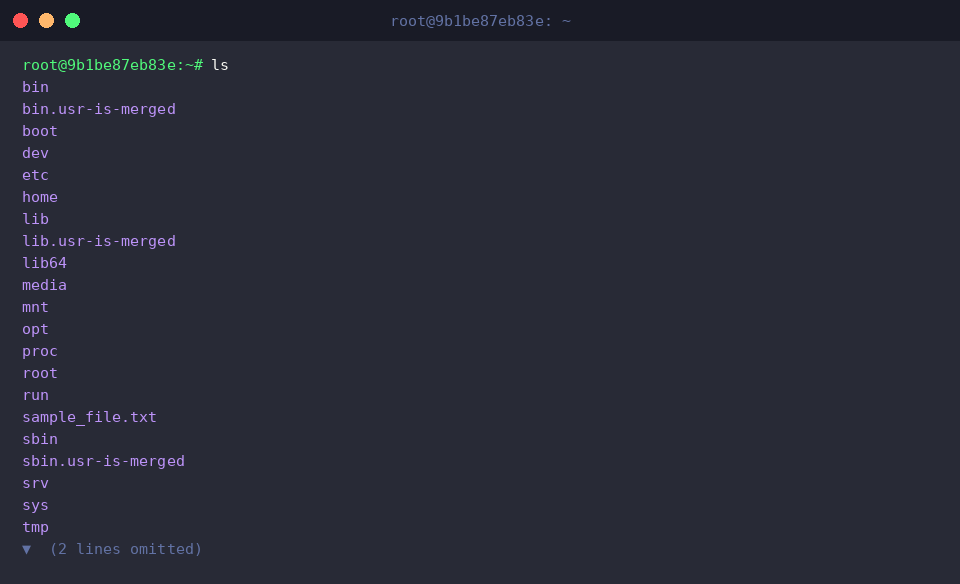
ls command displays the list of files and directories contained in the current working directory.
When executed without options, only regular files and directories are displayed on the screen according to default settings.
As a result of execution, the previously created .hidden_config file is not visible, and only the regular file item sample_file.txt is displayed.
⚙️ [Key Options]
-a : Outputs all files and directories, including hidden items starting with a dot (.).-l : Displays detailed information such as file permissions, owner, group, file size, and modification time.-h : Converts and displays file sizes in human-readable formats (K, M, G).-t : Sorts and outputs files by modification time order instead of alphabetical order.-r : Reverses the sorting results for output.-R : Recursively outputs all internal contents of subdirectories.
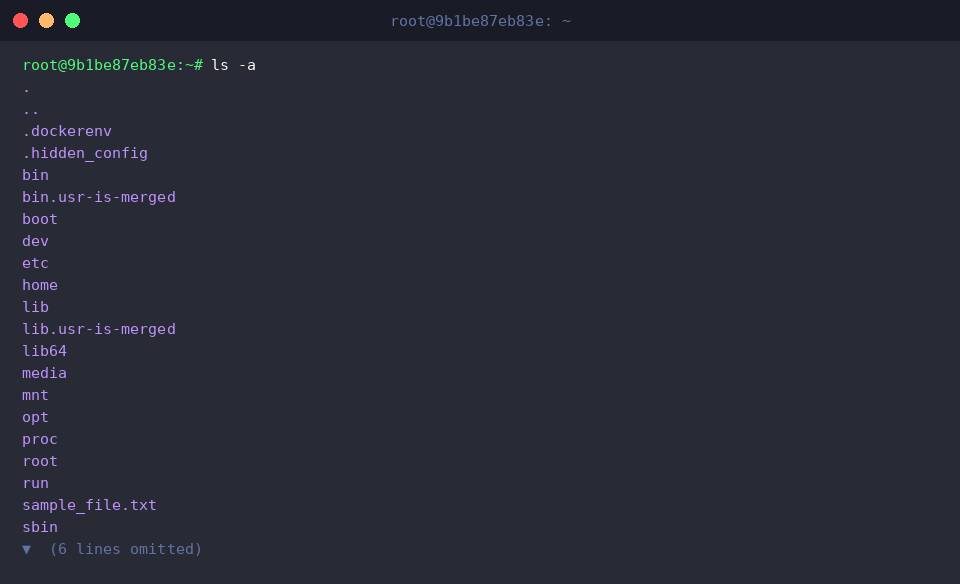
ls -a command views all items in the directory, including hidden files and directories.
Passing the -a option to the basic ls command allows you to check even hidden files starting with a dot (.) at a glance.
As a result of execution, not only regular files but also the .hidden_config file, the current directory (.), and the parent directory (..) are all listed.
⚙️ [Key Options]
-a : Outputs all items, including hidden files and directories starting with a dot (.).-A : Outputs hidden files and directories starting with a dot (.), but excludes the current directory (.) and parent directory (..).-l : Displays detailed attributes of files such as permissions, owner, and size in list format.-F : Appends indicators to distinguish file types, adding / after directories and * after executable files.-i : Outputs the unique inode number for each file and directory.
2. Checking Detailed Information and Permissions Using ls -l and ls -al
echo 'Ubuntu Security' > sample_file.txt command saves the specified string into a file.
The echo command outputs the entered text, and the redirection operator > overwrites and writes the output content to the specified file.
Executing this command creates a new sample_file.txt file containing the string Ubuntu Security.
After execution, no separate message is displayed on the terminal, and file writing completes successfully.
⚙️ [Key Options]
-n : Does not output the trailing newline character after printing the string.-e : Enables interpretation of backslash escapes.-E : Disables interpretation of backslash escapes.

echo 'Secret Key' > .hidden_config command writes configuration information to a hidden file.
It saves the text Secret Key to the .hidden_config file, which has a dot (.) prepended to its file name.
Linux systems treat files starting with a dot (.) as hidden files, excluding them from standard directory listings.
As a result of executing the command, no text is displayed on the screen, and the hidden file is created successfully.
⚙️ [Key Options]
-n : Removes the trailing newline character at the end of the text output.-e : Configures the command to interpret escape characters.-E : Turns off the escape character interpretation feature.

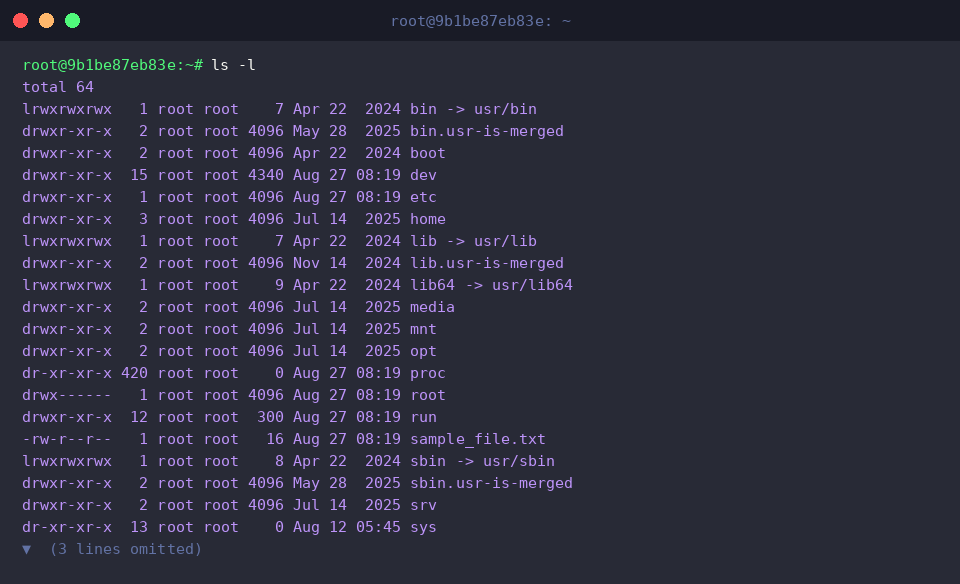
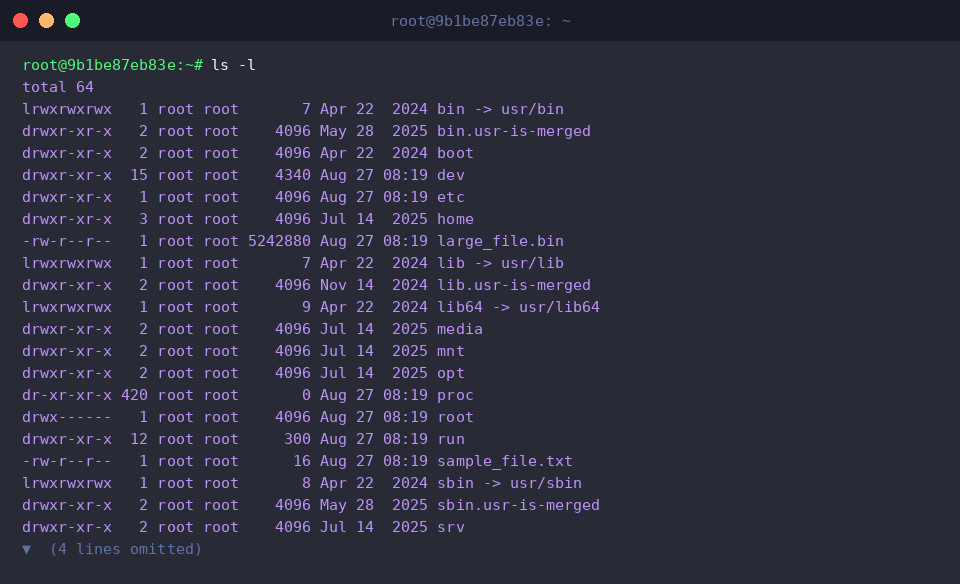
ls -l command displays the list of regular files and directories in the current directory along with detailed information.
The -l option outputs detailed attributes such as file permissions, owner, owning group, file size, and last modification time in long format.
Since it is in standard listing mode, hidden files starting with a dot (.) are not displayed on the screen.
The total 64 on the first line of the output represents the total directory block size occupied by the regular items displayed in the list.
⚙️ [Key Options]
-l : Outputs detailed information including file permissions, owner, file size, and modification time.-h : Displays file sizes in human-readable units (KB, MB, GB).-t : Sorts files by most recently modified time.-r : Reverses the sort order.-S : Sorts and displays files in order of size, largest first.
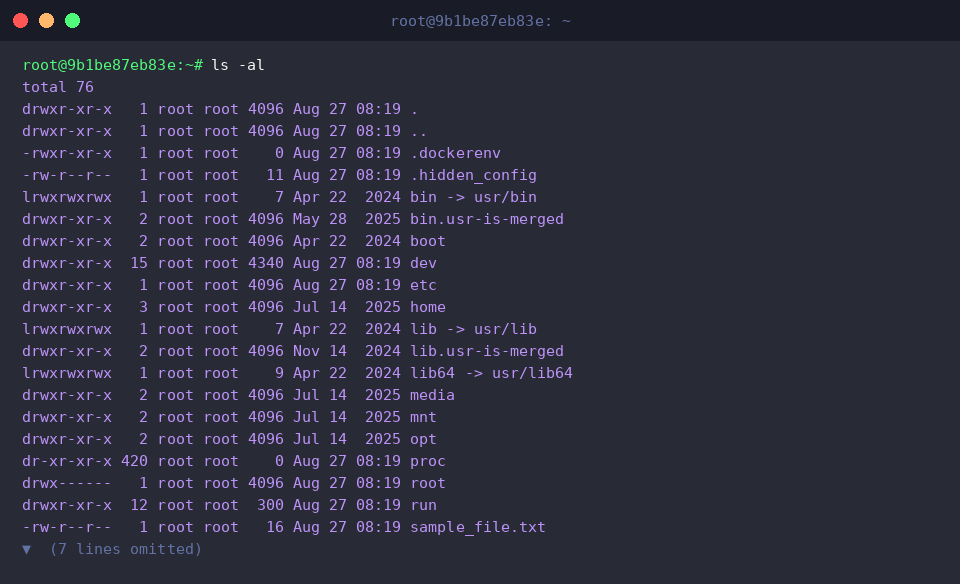
ls -al command outputs a detailed information list including all hidden files and directories.
Combining the -a option and -l option displays even hidden files starting with a dot (.) along with their permission and size information.
As a result of execution, the newly created .hidden_config and default hidden items such as .dockerenv, ., and .. are displayed at the top of the output.
The total 76 on the first line of output indicates that the total block size has increased compared to the ls -l output due to the added hidden files.
⚙️ [Key Options]
-a : Outputs all items, including hidden files and directories starting with a dot (.).-l : Displays detailed information such as file permissions, owner, size, and modification time in list format.-A : Outputs hidden files and all items, excluding the current directory (.) and parent directory (..).-i : Outputs the unique inode number of each file along with the list.-R : Recursively outputs all contents of subdirectories.
3. Combining the -h Option for Human-Readable Units (ls -alh)
truncate -s 5M large_file.bin command creates a new empty file of a specified size or adjusts the size of an existing file.
Executing this command creates large_file.bin, a regular test file with a size of 5MB.
⚙️ [Key Options]
-s : Specifies the size of the file in bytes or units such as K, M, G.-c : Does not create a new file if the specified file does not exist.-r : Sets the size to match an existing reference file.

truncate -s 10M .large_hidden_file.bin command creates a 10MB hidden file whose name starts with a dot (.).
In the Linux file system, prepending a dot (.) to the file name designates the item as a hidden file.
⚙️ [Key Options]
-s : Specifies the file size in bytes or units such as K, M, G.-c : Prevents automatically creating a new file when the file does not exist.-r : References and applies the size of a separate reference file as the baseline value.

ls -l command outputs detailed attribute information of regular files and directories within a directory in list format.
As a result of execution, large_file.bin is displayed in 5242880 bytes, making it difficult to intuitively grasp its size, and the hidden file .large_hidden_file.bin is excluded from the list.
⚙️ [Key Options]
-l : Outputs detailed information such as file permissions, owner, file size in bytes, and modification time.-a : Outputs all items in the directory, including hidden files starting with a dot (.).-h : Converts and displays file sizes in human-readable capacity units such as K, M, G.-t : Sorts items by most recently modified time.-r : Reverses the sort order to display in reverse.
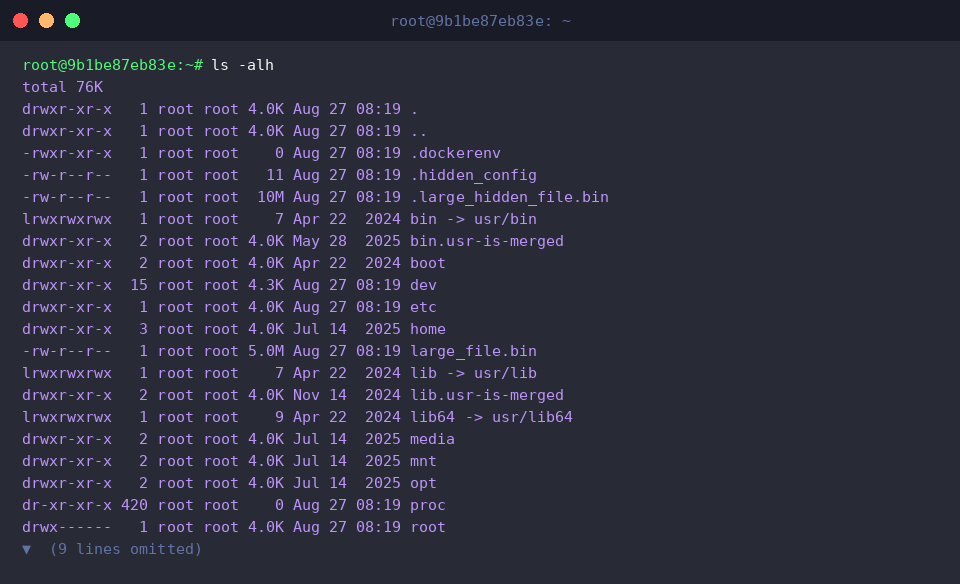
ls -alh command combines detailed information and human-readable capacity units to display the full list, including hidden files.
As a result of execution, 5242880 bytes is automatically converted to 5.0M, and the hidden 10MB file .large_hidden_file.bin appears in the list along with the 10M display.
⚙️ [Key Options]
-a : Includes hidden files and directories starting with a dot (.) in the list.-l : Outputs the list with detailed attributes, including permissions, owner account, and file size.-h : Converts and displays file sizes in highly readable units like KB, MB, GB.-S : Sorts items starting from the largest file size.-R : Recursively checks and outputs files inside subdirectories.
4. Combining Practical Time (-t) and Size (-S) Sorting Options
touch -t 202601010000 .old_hidden_log command creates or modifies a file by directly specifying its modification time.
In this example, to check the timestamp sorting results, an empty hidden file .old_hidden_log with the timestamp of January 1, 2026, 00:00 is created.
⚙️ [Key Options]
-t : Sets the modification and access time of the file in the specified date and time format.

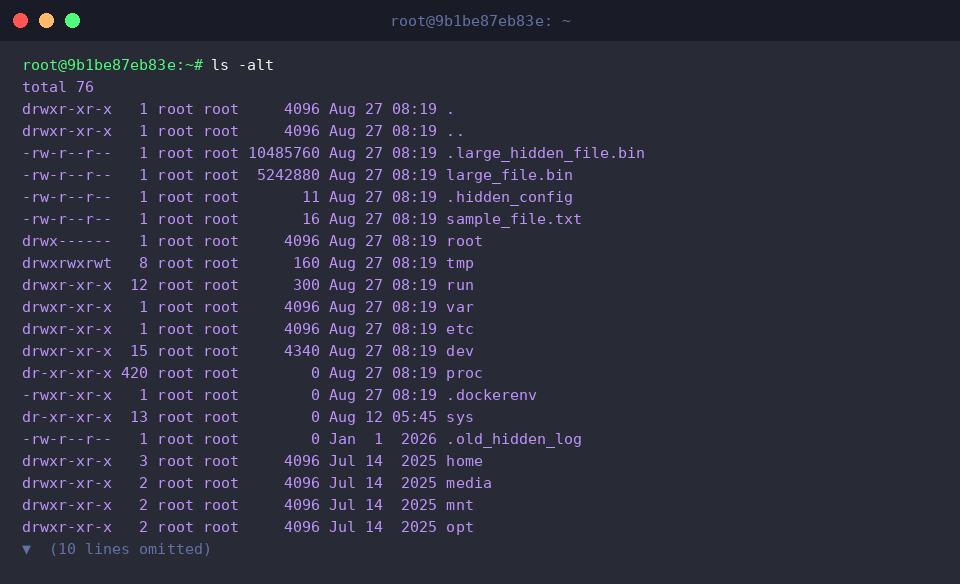
ls -alt command displays detailed information for all directory items, including hidden files, sorted by most recent modification time.
As a result of execution, the most recently modified or created files are placed preferentially at the top.
⚙️ [Key Options]
-a : Outputs all items, including hidden files and hidden directories starting with a dot.-l : Displays detailed information such as file permissions, owner, size, and modification time in list format.-t : Sorts files and directories in descending order based on the latest modification time.
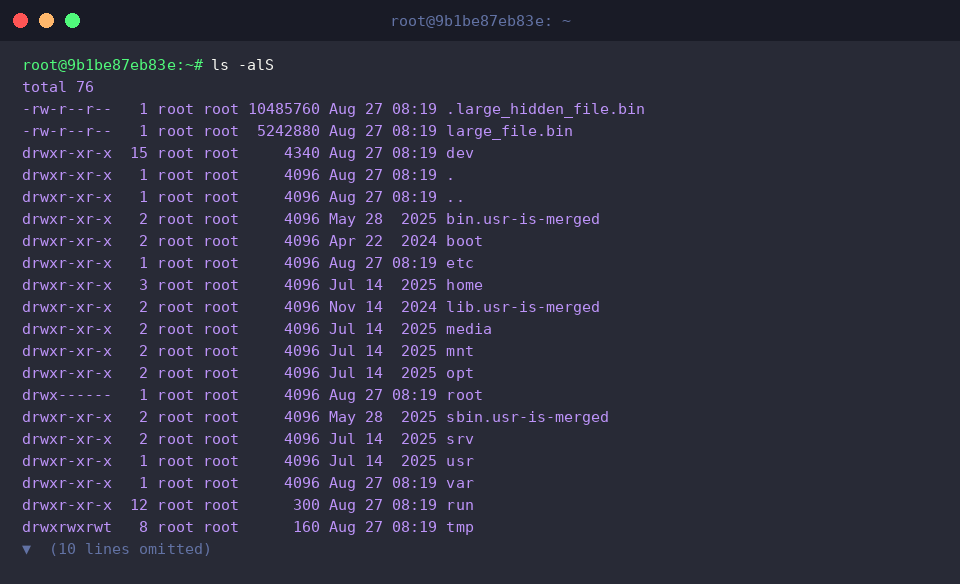
ls -alS command outputs detailed information for all items, including hidden files, sorted by file size in descending order.
It is useful for managing disk space by quickly identifying large files or directories.
⚙️ [Key Options]
-a : Outputs all items, including hidden files and hidden directories starting with a dot.-l : Displays detailed information such as file permissions, owner, size, and modification time in list format.-S : Sorts the list in descending order based on file size, largest first.
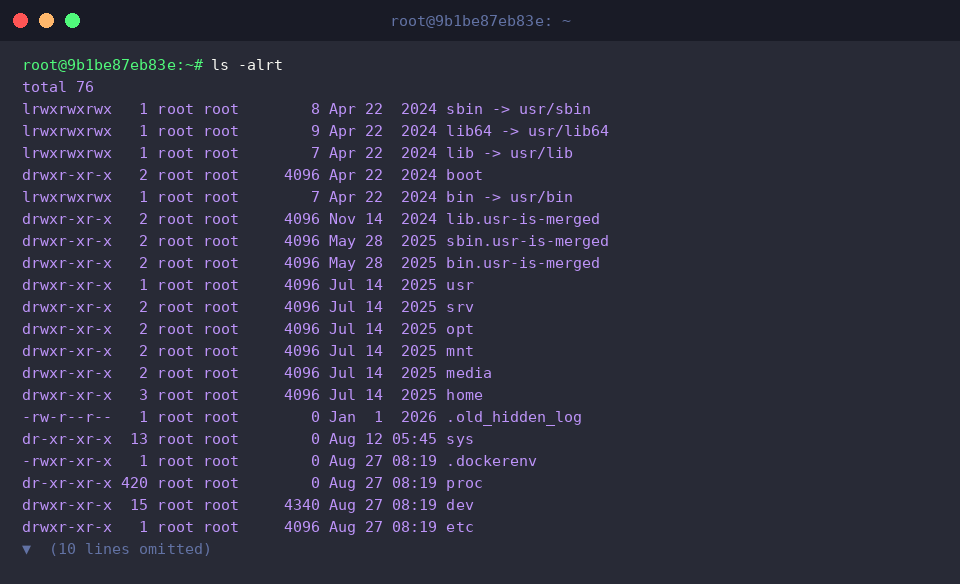
ls -alrt command outputs detailed information for all items, including hidden files, sorted by oldest modification time.
With reverse time sorting, the most recently modified files are displayed at the very bottom of the terminal screen, making them convenient to check immediately.
⚙️ [Key Options]
-a : Outputs all items, including hidden files and hidden directories starting with a dot.-l : Displays detailed information such as file permissions, owner, size, and modification time in list format.-r : Reverses the sort order into ascending order.-t : Sorts files and directories based on latest modification time.
So far, we have covered how to check hidden files and detailed permission information using the essential Linux command ls -al.
We hope you use this guide to manage files and directories more efficiently in your Linux environment.