


Overview
In a Linux environment, the cat command is the most widely used basic tool for quickly viewing and concatenating text file contents. Going beyond simple file viewing, we will explore key options directly in an Ubuntu practice environment that maximize productivity in real-world workflows—such as displaying line numbers, squeezing blank lines, and visualizing special characters. Compare the behavioral differences of each option and their actual terminal output to take your terminal productivity to the next level.
1. Creating a Sample Text File for Practice and Basic Viewing
To practice the various options of the cat command, create a sample.txt file containing consecutive blank lines, tab characters, and trailing spaces.
![printf ‘First line\n\n\nSecond line with tab:\t[TAB]\nThird line with trailing space \n’ > sample.txt](/ubuntu/20261008_012749_4/captures/s01_c01_printf__First_line_n_n_nSecond_line_with_tab__t_TA.png)
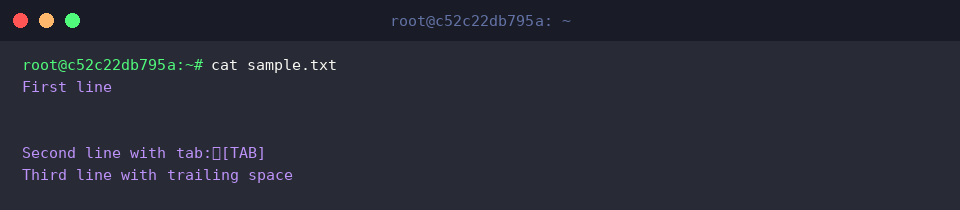
The cat command prints the contents of specified files directly to the terminal screen.
Running it without options displays the original text of the file as is.
⚙️ [Key Options]
-n : Displays line numbers at the beginning of all lines, including blank lines.-b : Numbers and displays non-empty lines only.-s : Squeezes multiple consecutive blank lines into a single blank line.-E : Displays a $ symbol at the end of each line to indicate line breaks.-T : Displays ^I where Tab characters are located for visual distinction.
2. Comparing Line Numbering Options (-n vs -b)
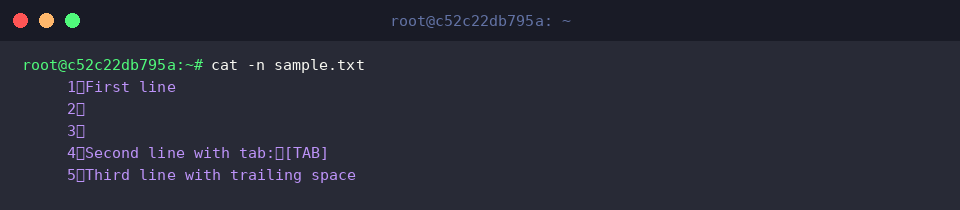
The cat -n sample.txt command numbers and displays all lines in the file.
It is useful for checking the overall flow and line positions, including blank lines without text (lines 2 and 3).
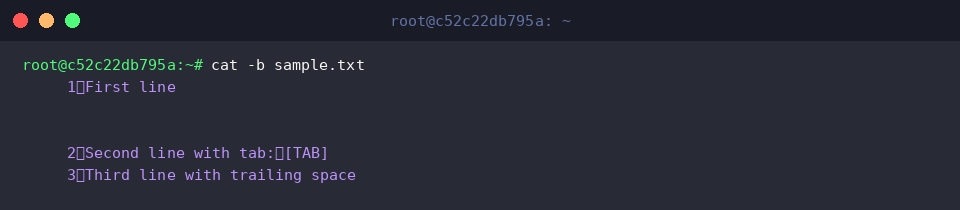
The cat -b sample.txt command numbers only non-empty lines.
Because it skips empty lines without content, it is convenient when you only want to determine the count of valid data lines.
3. Squeezing Consecutive Blank Lines into One for Improved Readability (-s)
The cat -s sample.txt command compresses consecutive blank lines into a single blank line.
It is useful for improving overall text readability by reducing unnecessarily long blank spaces.

The cat -ns sample.txt command compresses consecutive blank lines into one while numbering all lines.
It is effective for grasping both the total line count of the squeezed text and the position of each line at a glance.

4. Visualizing Invisible Special Characters, Newlines, and Tabs (-E, -T, -A)
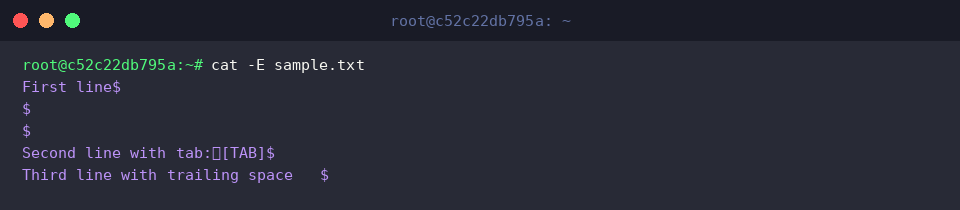
The cat -E sample.txt command displays a $ character at the end of each line (newline position).
It is handy for intuitively verifying whether invisible spaces (trailing space) or unnecessary line breaks exist at the end of a line.
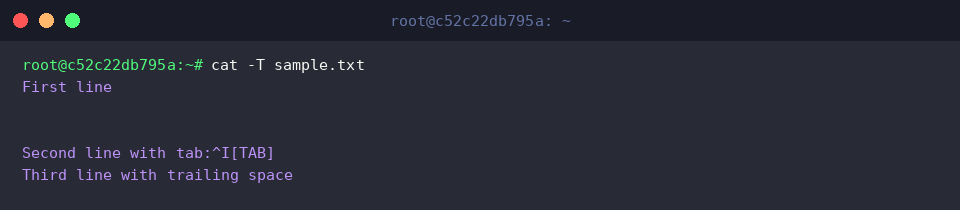
The cat -T sample.txt command replaces Tab characters with ^I on the screen.
This allows you to clearly distinguish regular spaces from tab characters, making it effective for inspecting indentation errors in code or configuration files.
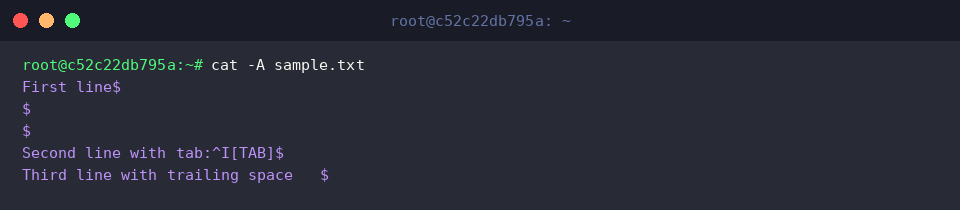
The cat -A sample.txt command visualizes all hidden special control characters, newlines, and tabs.
It operates equivalently to combining -vET, displaying both tabs (^I) and newlines ($) at the same time, making it ideal for checking invisible whitespace bugs in one go.
5. Merging Multiple Files and File Creation Using EOF
Create a header.txt file containing header information for the file merging practice.

The cat header.txt sample.txt > merged.txt command combines the contents of both header.txt and sample.txt sequentially and saves them into a new file named merged.txt.
This is effective when concatenating multiple text files into one or prepending a header to a document.

The cat << 'EOF' > append_test.txt command uses Here Document syntax to write multiple lines of text to append_test.txt until EOF is entered.
It is useful for quickly writing multi-line text to a file directly from the shell without opening an editor.

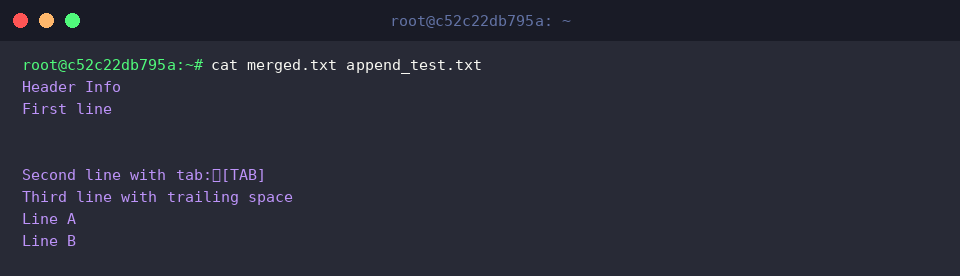
The cat merged.txt append_test.txt command concatenates and prints the contents of merged.txt and append_test.txt sequentially to the terminal screen.
This allows you to verify at a glance whether the entire merged data flow and sequence are properly structured.
We have covered everything from the fundamentals of the Linux cat command to 5 key options frequently used in practice, along with their execution results.
Take advantage of these options suited to your specific scenarios to further enhance your file viewing and workflow efficiency in the terminal.