


Introduction
Efficient software administration forms the cornerstone of maintaining a reliable Ubuntu server or workstation. At the heart of Debian-derived distributions sits the Advanced Package Tool (APT), an intuitive front-end interface built to simplify dependency resolution and application lifecycles. This practical walkthrough covers essential package operations—refreshing repository indexes, deploying binaries, conducting dependency audits, performing clean uninstallations, and freeing wasted storage from system caches.
1. Synchronizing Repositories and Checking Pending Upgrades (apt update)
Before altering packages on your machine, sync local package indexes with upstream remote mirrors. Running sudo apt-get update -qq pulls down the newest package catalogs quietly in the background without verbose diagnostic messages.

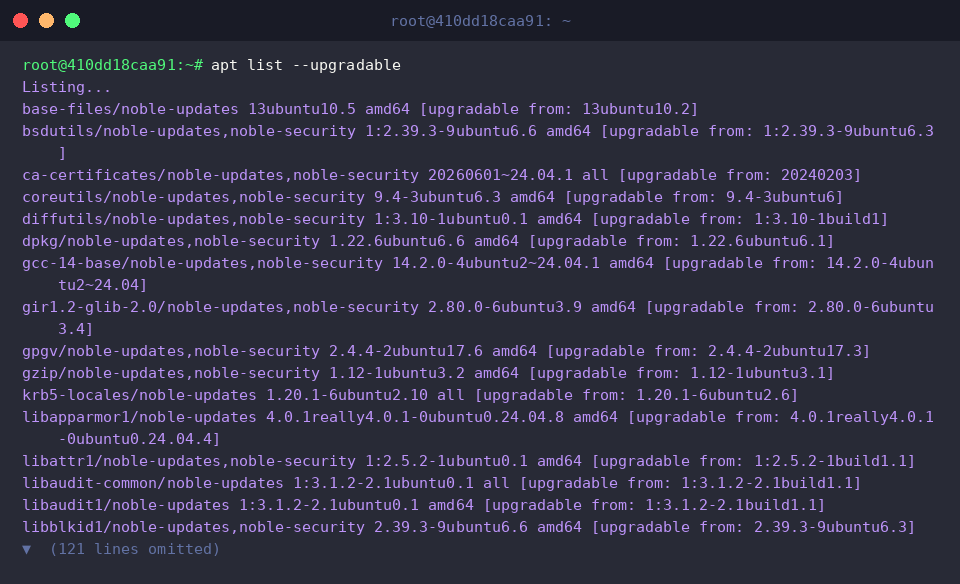
Following an index sync, you can inspect which applications have newer builds published upstream by invoking apt list --upgradable.
The resulting terminal output compares currently deployed software versions directly against upstream releases waiting to be applied.
⚙️ [Core Subcommands and Flags]
update : Fetches refreshed catalog files and index databases from configured software sources.upgrade : Safely transitions installed software to newer releases without removing existing packages.install : Fetches and unpacks designated software binaries alongside required runtime dependencies.remove : Uninstalls package binaries while leaving configuration scripts intact for future reuse.purge : Erases binaries as well as all associated global configuration settings and service files.autoremove : Identifies and eliminates orphaned libraries no longer referenced by active software.search : Queries repository indexes across software names and concise package summaries.show : Displays exhaustive package metadata, including architecture, maintainer details, and required libraries.-y (--yes) : Automatically supplies affirmative confirmation to non-interactive terminal prompts.
2. Searching Remote Repositories and Inspecting Metadata (apt search, apt show)
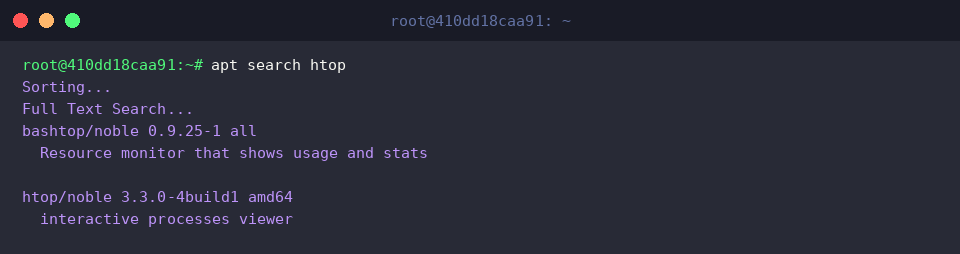
Running apt search htop scans available remote channels for software matching the given string and prints short feature summaries.
As displayed in the console output, this search confirms the availability of the interactive process viewer htop within current repository branches.
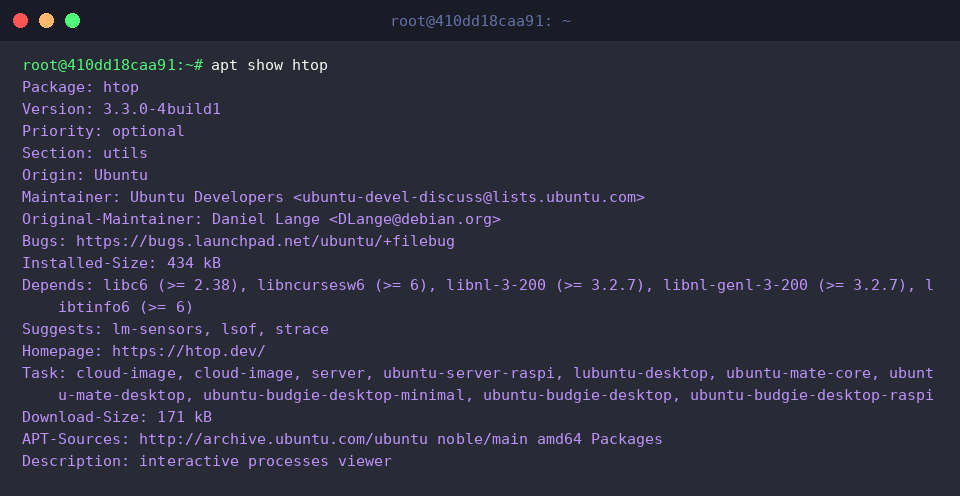
To review architectural details, installed size, and dependency constraints before pulling software onto your machine, execute apt show htop.
The output provides key operational details: package release tracking, exact archive sizing, official project URLs, and critical runtime requirements listed under Depends.
3. Deploying and Verifying Software Packages (apt install)
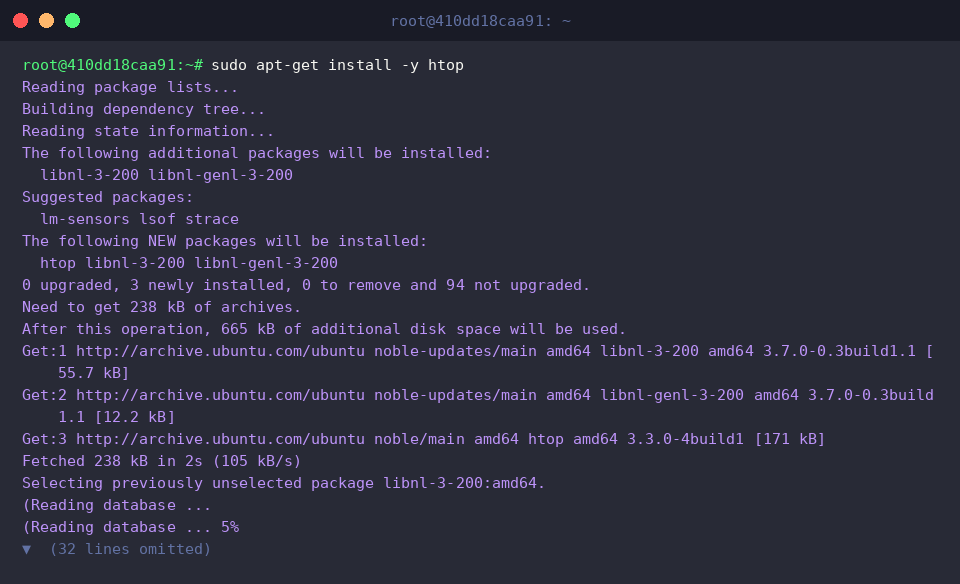
Executing sudo apt-get install -y htop triggers automated retrieval and setup, bypassing confirmation dialogues via the -y flag while pulling both the target program and companion dependencies.
The installation log illustrates how auxiliary support packages (libnl-3-200, libnl-genl-3-200) are fetched automatically to ensure htop executes reliably.
Confirm binary availability and correct deployment by querying the executable version with htop --version.
The response confirms that release htop 3.3.0 is registered properly in the environment path and ready for production use.

4. Removing Binaries and Purging Residual Configurations (apt remove, apt purge)
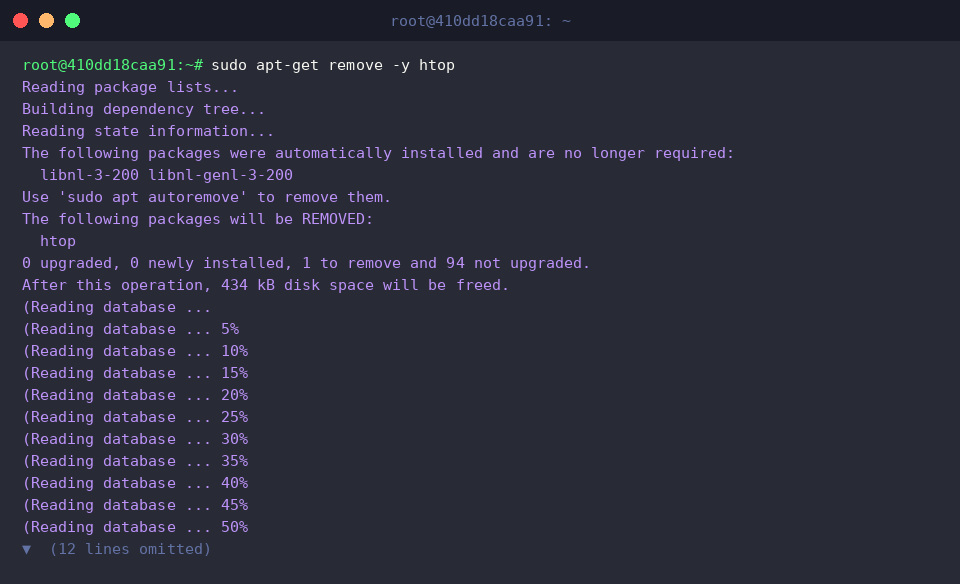
When you need to decommission an application while retaining user-modified configuration files, run sudo apt-get remove -y htop.
The uninstallation output demonstrates that while the core binary is pulled, previously installed shared libraries (libnl-3-200, libnl-genl-3-200) remain untouched on the filesystem as unmanaged remnants.
You can verify the removal of the executable binary using a simple fallback shell one-liner: which htop || echo 'htop이 성공적으로 제거되었습니다.'.
Because the primary binary has been discarded from search paths, the shell executes the conditional fallback message, confirming that the tool is no longer available.

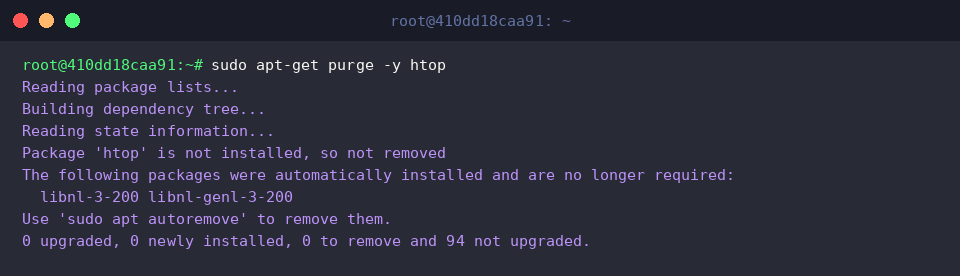
To eliminate all lingering server configurations, daemon definitions, and residual artifacts belonging to the software, issue sudo apt-get purge -y htop.
The CLI output notes that the binary was wiped during the previous step and confirms the final deletion of configuration state data.
5. Pruning Orphaned Dependencies and Clearing Cache Archives (apt autoremove, apt clean)
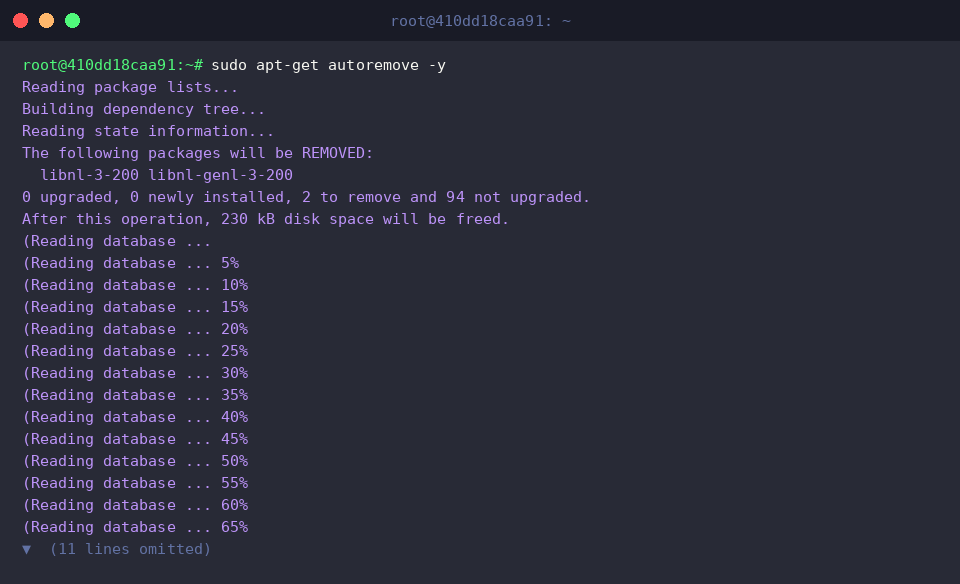
When core packages are uninstalled, secondary helper packages can remain behind as orphaned bloat. Running sudo apt-get autoremove -y cleans out these abandoned shared dependencies automatically.
The terminal output indicates that the companion libraries (libnl-3-200, libnl-genl-3-200) originally installed alongside htop have been scrubbed, instantly reclaiming allocated drive storage.
Over time, cached package installers consume substantial storage in system partitions. The sudo apt-get clean command purges every downloaded .deb archive file stored on local storage.
Returning cleanly without errors, the command indicates that local repository caches have been drained.

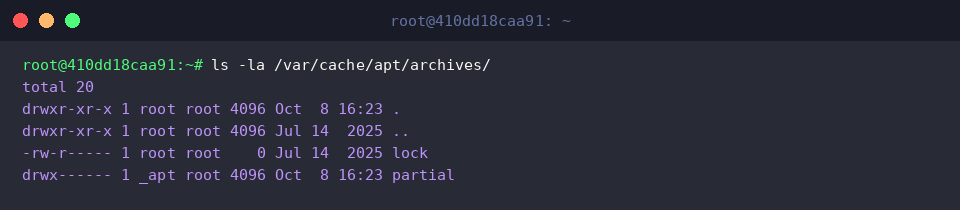
To inspect storage recovery and ensure archive files were discarded, review the cache folder with ls -la /var/cache/apt/archives/.
The directory listing proves that all staged .deb installers were wiped out, leaving behind only the core directory layout and necessary internal lock files.
Mastering repository synchronization, installation workflows, thorough package purges, and automated cache maintenance equips you with the tools needed to keep Linux environments lean, responsive, and secure. Incorporating these practical commands into routine server maintenance routines will ensure your operating system remains clean and clutter-free.