


Introduction
Keeping a close eye on system health is a fundamental responsibility for any systems engineer or DevOps practitioner, and the classic top utility remains one of the fastest, most dependable tools in the Linux diagnostic toolkit. This tutorial unpacks the standard metrics reported by top, demonstrates indispensable command-line switches for production troubleshooting, and provides practical examples for tracking system bottlenecks effectively.
Standard Execution & Capturing Automated Snapshots with Batch Mode
At its core, top delivers a live, updating view of processor utilization, physical and virtual memory allocation, and task-level execution states across the operating system.
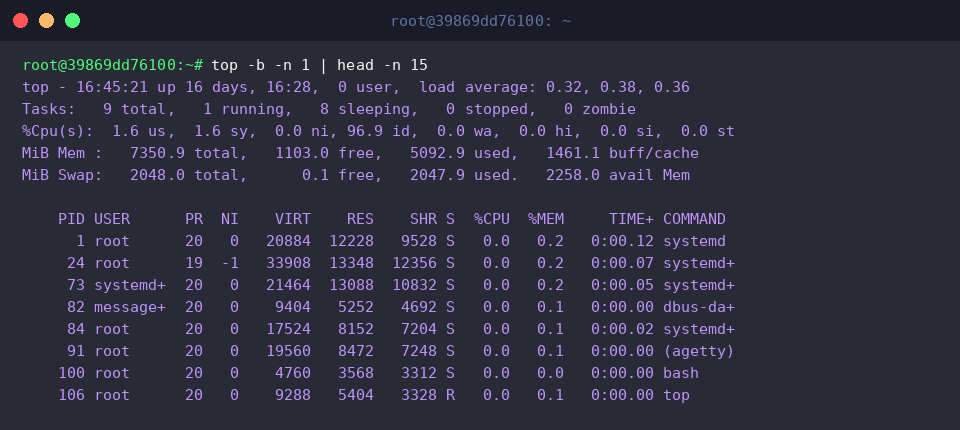
While its default interactive interface is great for manual inspection, automating log captures or shell scripts requires non-interactive execution. Pairing batch mode (-b) with an iteration counter (-n 1) turns the dynamic dashboard into standard text output, which we can pipe directly into head -n 15 for a clean snapshot of overall load averages and top resource consumers.
⚙️ [Essential CLI Flags]
-b : Runs in non-interactive batch mode, stripping terminal escape sequences so raw text can be redirected or piped into utilities cleanly.-n : Caps execution to a designated number of refresh cycles before terminating.-d : Adjusts the sampling delay between display updates (measured in seconds).-p : Constrains monitoring exclusively to a comma-separated list of target Process IDs (PIDs).-u : Restricts process listings to tasks owned by a designated user account or UID.-c : Toggles the command column to reveal full binary paths and startup arguments rather than base process names.
Isolating Workloads by Specific System Users
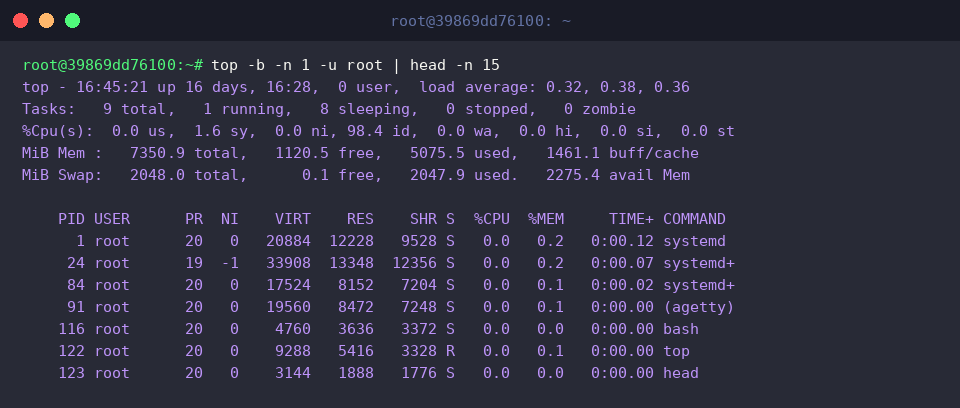
When diagnosing shared multi-tenant instances or tracking application services, isolating processes by their operating user is often necessary. Passing the target account name to the -u flag eliminates background noise from unrelated processes.
Running top -b -n 1 -u root | head -n 15 filters out non-privileged tasks, presenting an immediate view of administrative daemons and kernel-adjacent processes managed under the root namespace.
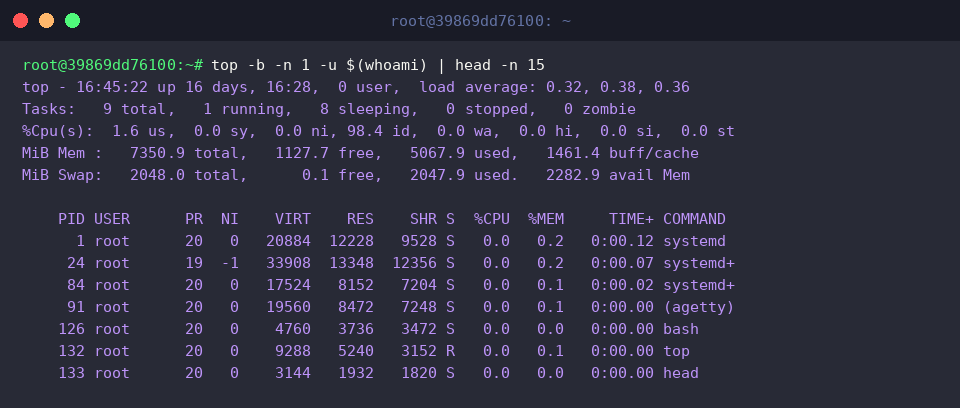
You can also dynamically query the current shell session’s owner on the fly via command substitution with $(whoami).
Executing top -b -n 1 -u $(whoami) | head -n 15 queries the currently logged-in account, providing immediate insight into user-space scripts, active background jobs, and interactive shell workloads.
Targeting Specific Process IDs (PIDs) and Polling Frequencies
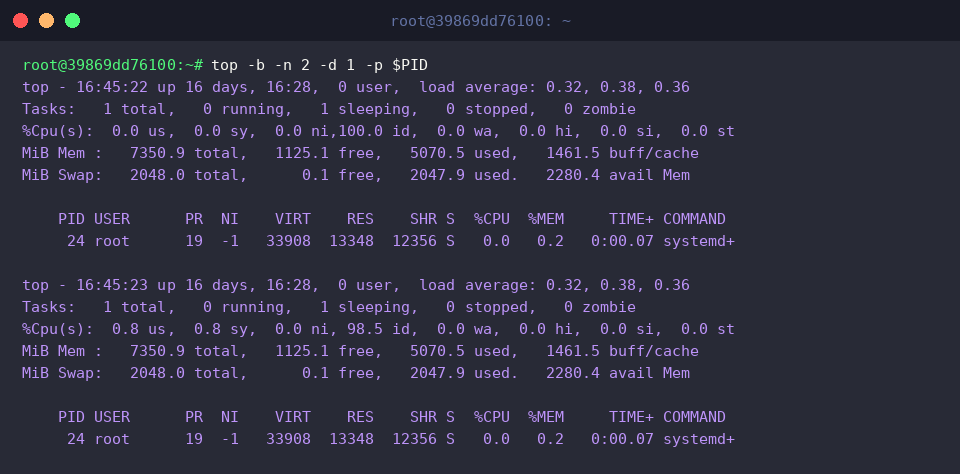
To diagnose a specific background service without wading through the full process table, you can isolate it by its process identifier. Here, we dynamically query the primary initialization daemon PID using PID=$(pgrep -f systemd | head -n 1 || echo 1) and store the target value inside an environment variable.

Once isolated, running top -b -n 2 -d 1 -p $PID launches batch monitoring targeted exclusively at $PID. Configured with a one-second sampling interval (-d 1) across two consecutive sweeps (-n 2), this command captures transient workload fluctuations and memory footprints for that individual daemon over time.
Sorting Workloads by Resident Memory (RES) and CPU Utilization
When troubleshooting memory pressure or investigating early signs of OOM (Out Of Memory) killer triggers, sorting by memory consumption is crucial.
Running top -b -n 1 -o %MEM | head -n 15 forces the process listing to sort descending by %MEM. This instantly highlights which workloads hold the largest resident memory allocations (RES), helping you catch leaks or heavy cache footprints before swap churn begins.
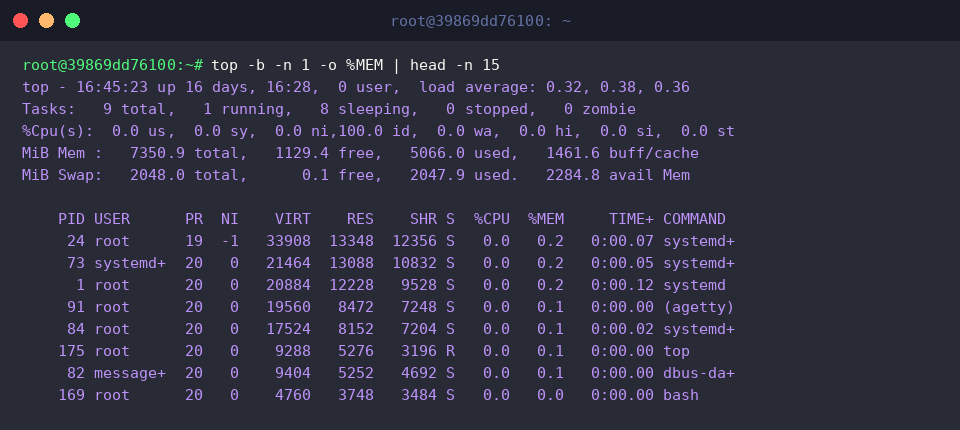
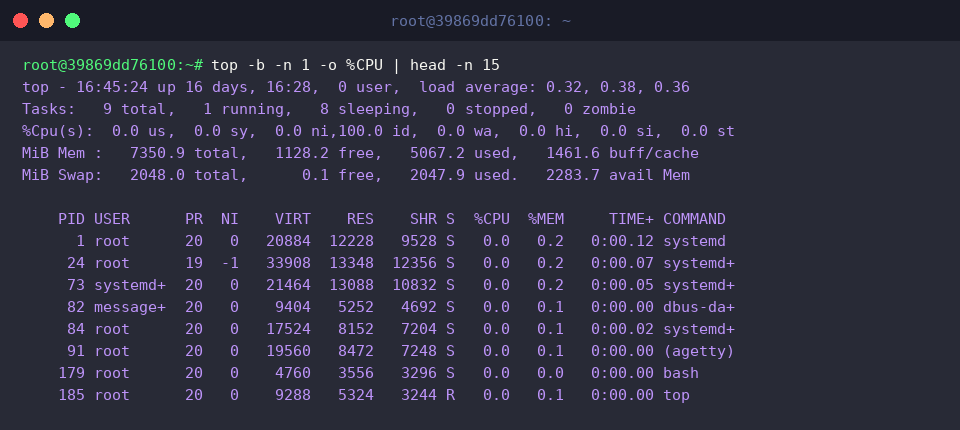
Similarly, when investigating processor bottlenecks and elevated system load, you can reorder tasks by raw computing consumption.
Executing top -b -n 1 -o %CPU | head -n 15 bubbles up the most compute-intensive threads to the top, pinpointing rogue runaway loops or demanding background compilation jobs right away.
Mastering these top flags and process-filtering workflows provides a fast, lightweight, and dependable approach to debugging Linux performance bottlenecks without needing heavyweight external agents. Incorporate these one-liners into your operational routines to streamline day-to-day server administration.