


Overview
Whenever you need to pull files directly from the web inside a headless Linux server or terminal console, GNU wget stands out as an indispensable workhorse. This hands-on walkthrough covers the utility’s everyday operational patterns—ranging from simple fetches and custom destination handling to fault-tolerant resumes and detached background processing.
Setting Up wget and Fetching Your First File
Before diving into real-world scenarios, make sure your local repository index is current and install the wget package if it is missing from your system.
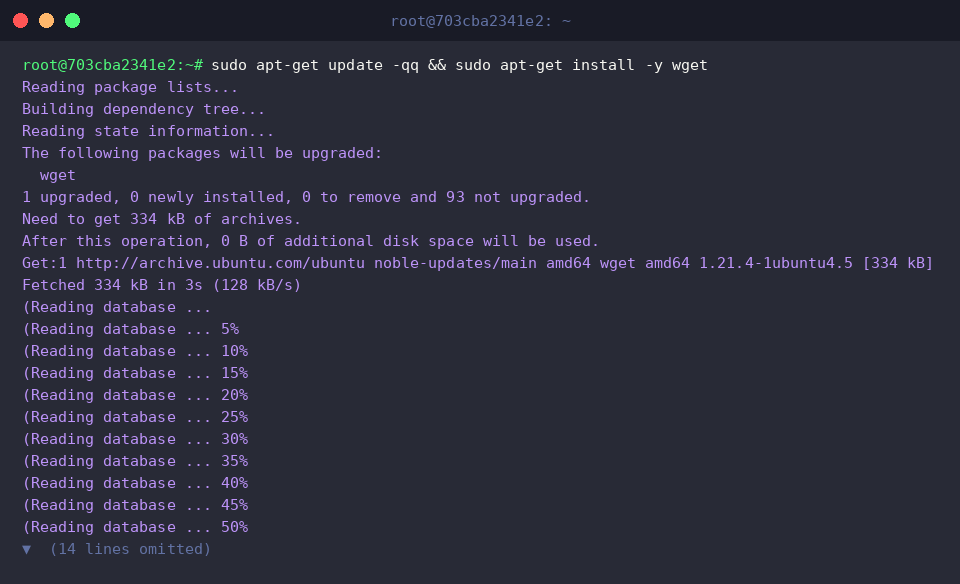
To keep your workspace organized and prevent test downloads from cluttering your home directory, spin up an isolated test folder and switch into it.

Invoking wget without extra parameters fetches the target asset over HTTP/HTTPS and drops it into your current working directory using whatever filename the remote server advertises.
Here is a quick breakdown of essential flags you will encounter in day-to-day administration:
⚙️ [Core Options]
-O : Redirects the downloaded stream to a designated target filename or custom file path.-c : Picks up an interrupted transfer right where it dropped off.-b : Forks the active download straight into a detached background daemon.-i : Ingests a text file of multiple URLs to process bulk transfers sequentially.--limit-rate : Throttles transmission throughput to keep network bandwidth predictable.-q : Suppresses all interactive console outputs and progress meters (Quiet mode).-r : Scrapes websites and remote directories recursively.

Renaming Assets (-O) and Routing to Target Paths (-P)
Navigate back to the designated sandbox (~/wget_test) to verify custom output routing.

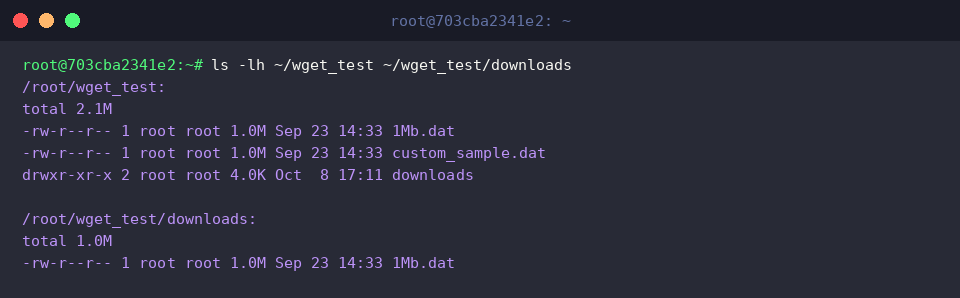
When you need to override the upstream file name during retrieval, pass the -O switch followed by the preferred identifier—here saved as custom_sample.dat.

Next, create an explicit storage folder (~/wget_test/downloads) to separate incoming data from your execution root.

Rather than changing directories or manually relocating files post-fetch, the -P prefix directs wget to write incoming payloads straight into ~/wget_test/downloads.

Inspect both locations with ls -lh to confirm that the renamed artifact and the routed file landed exactly where intended.
Resuming Broken Transfers (-c) on Large Files
Return to the root test environment (~/wget_test) to test network drop recovery.

To simulate sudden connection drops or timeouts mid-transfer, wrap the fetch inside a timeout invocation that forcibly cuts the socket after two seconds. This leaves an incomplete payload on disk.

Examining 10Mb.dat reveals that only a fraction of the expected 10 megabytes was captured before the process terminated.

Instead of re-downloading the entire multi-gigabyte package from scratch, appending the -c (continue) switch instructs the client to negotiate a byte-range request with the server. Only the remaining chunks are retrieved, drastically minimizing network strain and wait times.

Throttling Bandwidth (–limit-rate) and Detached Execution (-b)
Ensure your shell prompt is located in the test workspace (~/wget_test).

In production environments where multiple services compete for transit capacity, unbounded downloads can saturate network pipes. The --limit-rate option caps throughput—such as restricting transfers to 200 KB/s (200k)—safeguarding neighboring services.

For massive archives or batch jobs that shouldn’t stall your active shell, pass -b. This decouples the transfer into a standalone background task that survives SSH disconnects and session timeouts, automatically piping diagnostic logs into wget-log.

Pause for a single second with sleep 1 to allow the detached child process to initialize network negotiations and populate its log file.

Monitor ongoing progress in the detached task by tailing the generated logfile with tail -n 10 wget-log. You can inspect handshakes, HTTP response headers, and current speed ratings on the fly.

These fundamental techniques demonstrate how wget excels far beyond a basic command-line downloader. Integrating path controls, rate limits, resilient resumes, and daemon modes into your shell toolbelt will give you complete control over web transfers across your Linux environments.