


Overview
In enterprise Linux and Ubuntu environments, managing discretionary access control begins with properly assigned filesystem ownership. Fine-tuning who owns specific assets prevents privilege escalation and guarantees that system daemons interact smoothly with target files. This walkthrough explores the core operational mechanics of the chown utility—covering basic user assignment, dual user-group updates, recursive subtree modifications via -R, and duplicating permission structures using reference files.
1. Modifying Standard File Ownership
To establish a baseline for ownership modification, initialize a blank practice artifact and inspect its default user mapping with touch test_file.txt && ls -l test_file.txt.

Under Linux, chown (change owner) serves as the primary tool for updating the user and group metadata associated with any filesystem inode. To reassign this individual file to an unprivileged account, invoke elevated privileges via sudo chown nobody test_file.txt.
⚙️ [Essential Command Switches]
-R : Traverse subtrees recursively, reapplying the target ownership to all nested entries.-v : Provide verbose diagnostics detailing every file evaluated during the transaction.-c : Report output strictly when an actual ownership modification takes place.-f : Suppress warning diagnostics and error alerts during batch executions.--reference : Mirror the user and group ownership of an existing blueprint file directly onto the destination path.

A subsequent query via ls -l test_file.txt confirms that the metadata transitioned cleanly from root to the target nobody account.

2. Simultaneous User and Group Reassignment
Real-world administration often calls for updating both user and group identities in a single atomic step. Begin by staging a mock service file and auditing its current descriptor using touch web_config.conf && ls -l web_config.conf.

To provision web daemon access, assign both the user and group identities at once by running sudo chown www-data:www-data web_config.conf. The colon (:) delimiter acts as a separator between user and group strings, streamlining server deployment scripts and daemon provisioning workflows.

Verify the applied changes by querying the directory attributes with ls -l web_config.conf. The output confirms both ownership columns have migrated from root to www-data.

3. Recursive Ownership Propagation Across Directory Trees (-R)
When administering application runtimes or nested project directories, updating nodes individually is inefficient. Lay out a multi-tiered directory hierarchy for testing using mkdir -p /tmp/project_dir/sub && touch /tmp/project_dir/file1.txt /tmp/project_dir/sub/file2.txt.

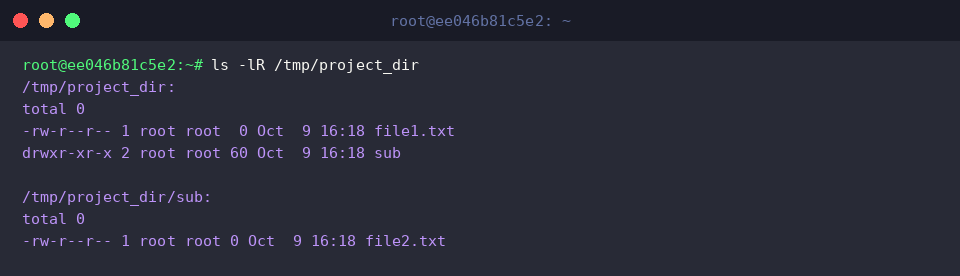
Prior to triggering batch modifications, review the permission baseline of the entire directory tree using ls -lR /tmp/project_dir. The output illustrates that root retains ownership across all top-level folders and nested components.
To reassign the root container alongside every nested node, pass the recursive flag to the utility: sudo chown -R nobody:nogroup /tmp/project_dir. Supplying -R instructs the command to traverse the filesystem graph depth-first, enforcing the requested nobody:nogroup configuration downward.

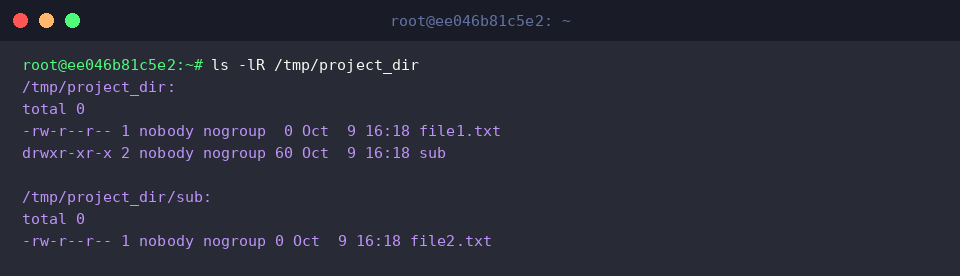
Validate the sweeping configuration update by running ls -lR /tmp/project_dir. Every structural element—including file1.txt, the sub subdirectory, and nested file2.txt—now reflects the uniform nobody:nogroup credentials.
4. Cloning Existing Ownership Profiles Using --reference
In automation scripts, copying an established permission template directly avoids hardcoding account names. Prepare two test files to serve as prototype and target using touch source_file.txt target_file.txt.

Prime the prototype file with custom daemon credentials by executing sudo chown daemon:daemon source_file.txt.

Examine the two inodes side-by-side using ls -l source_file.txt target_file.txt. As expected, source_file.txt reflects daemon:daemon, whereas target_file.txt retains default root:root properties.

Replicate the exact ownership metadata onto the target without typing manual username identifiers: sudo chown --reference=source_file.txt target_file.txt. The --reference parameter reads the underlying UID and GID attributes of the source asset and applies them directly to the destination.

Perform a final validation check via ls -l source_file.txt target_file.txt. The output demonstrates that target_file.txt now matches the daemon:daemon pairing established on the reference file.

Consistent ownership auditing lies at the foundation of reliable Linux administration. By leveraging targeted assignments, recursive transitions, and reference cloning with chown, systems engineers can enforce rigorous security policies and ensure reliable daemon operations across complex environments.