


Introduction
Attaching filesystems to the unified directory hierarchy stands as one of the cornerstone concepts of Linux systems engineering. Rather than working purely in the abstract, this practical tutorial walks you through everything required to manipulate storage effectively using the mount utility. We will build a dedicated loopback disk image from scratch, configure various runtime access flags, safely detach volumes with umount, and unpack the mechanics of automating boot-time persistence via /etc/fstab.
Inspecting Mounted Filesystems and Preparing a Mount Point
System administrators routinely inspect current storage allocations before attaching new drives. Running df offers a comprehensive snapshot of all active filesystems alongside their capacity metrics:
Applying -h formats disk usage into human-readable denominations (such as gigabytes and megabytes), while -T reveals underlying filesystem implementations like ext4, tmpfs, or overlay.
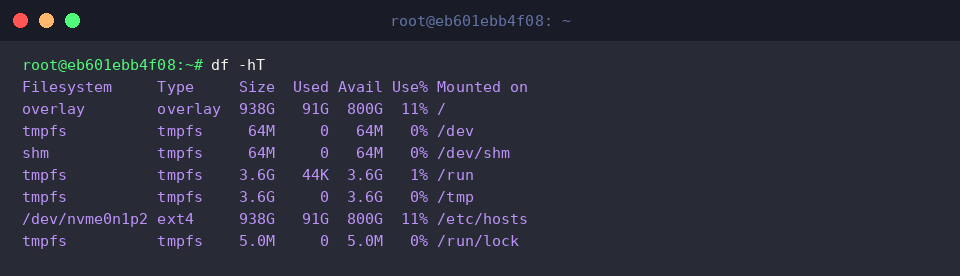
When you need an architectural view of current attachments rather than raw capacity figures, findmnt displays a clear tree representation of all mount relationships:
Passing -t ext4,xfs filters out transient virtual and pseudofilesystems, isolating persistent block storage formats like ext4 and xfs.
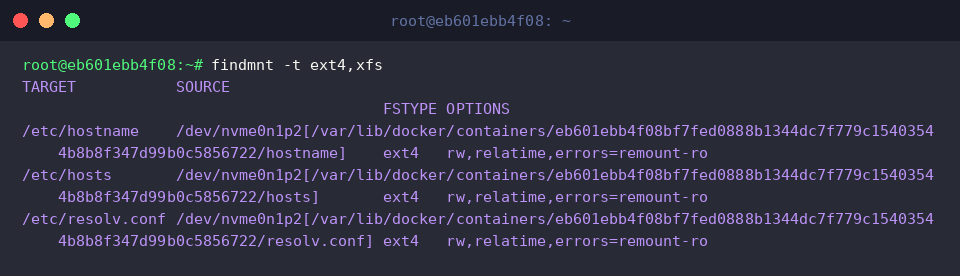
Every filesystem requires an empty host directory to serve as its entry point into the system tree. Provision this target destination with administrative privileges:
sudo mkdir -p /mnt/mydisk

Constructing and Formatting a Virtual Disk Image
To avoid risking production partitions during experimentation, you can simulate an isolated raw block drive inside a sandboxed workspace:
mkdir -p ~/disk-test && cd ~/disk-test

Using the low-level data copier dd, initialize a 100MB zero-filled flat image file that will serve as our virtual storage drive:
dd if=/dev/zero of=testdisk.img bs=1M count=100

A raw block container cannot hold directories or metadata until a filesystem structure is written onto it. Lay down a standard Linux ext4 structure across the image:
sudo mkfs.ext4 -F testdisk.img

Attaching the Loop Device and Verifying Read/Write Operations
With the raw filesystem prepped, link the image file to the designated directory via loopback emulation:
sudo mount -o loop ~/disk-test/testdisk.img /mnt/mydisk
The -o loop flag instructs the kernel to bind a regular file to a virtual block device node, bridging standard files directly into the mount subsystem.

Confirm that the kernel successfully anchored the container to the targeted path by isolating the mount entry:
df -h | grep /mnt/mydisk
Filtering the output verifies both successful attachment and the total allocatable space available inside /mnt/mydisk.

Ensure the attached storage supports standard filesystem I/O by executing write and inspection operations:
sudo touch /mnt/mydisk/test_file.txt && ls -l /mnt/mydisk
The creation and directory listing of test_file.txt validates that permissions and inode handling are fully operational across the newly attached boundary.

Safe Unmounting and Enforcing Read-Only Mount Constraints
Never unplug or destroy an attached volume without properly flushing buffered writes. Safely unmount the device using administrative rights:
sudo umount /mnt/mydisk
Executing umount commits pending kernel memory caches back into persistent storage, eliminating potential data corruption risks prior to disconnection.

In security-hardened or audit scenarios, volumes frequently need write protections. Remount the image with immutable privileges:
sudo mount -o loop,ro ~/disk-test/testdisk.img /mnt/mydisk
Combining the ro parameter alongside loop locks down the filesystem against any modifications, updates, or file deletions.

Verify that the kernel actively blocks write requests by attempting to instantiate a new file:
sudo touch /mnt/mydisk/error_file.txt || echo 'Read-only mount confirmed'
Because write access is completely denied by the ro flag, the touch command aborts with a write-protection error, triggering the fallback echo confirmation string.

Once verification completes, detach the storage cleanly once more:
sudo umount /mnt/mydisk
Releasing the directory returns the filesystem hierarchy to a tidy baseline state.

Retrieving Storage UUIDs and Demystifying /etc/fstab Persistence
To make device attachments survive server reboots, Linux relies on static declarations in the /etc/fstab configuration table. Rather than relying on legacy device nodes (/dev/sdX) which may shuffle when hardware changes, query the universally unique identifier:
sudo blkid ~/disk-test/testdisk.img
The returned UUID remains deterministic and stable regardless of physical port reconnections, making it the industry standard for production persistence.

Examine the tail of your system’s boot configuration file to review current automatic mount declarations:
tail -n 5 /etc/fstab
Each declarative row in /etc/fstab consists of six distinct columns: storage identifier (UUID/device node), target mount point, filesystem type, mount options (e.g., defaults, ro), dump backup flags, and fsck integrity check priority.

Understanding how manual attachments, runtime flags, and fstab entries interact gives you complete control over storage lifecycle management on Ubuntu. Applying these practices ensures high reliability across both development environments and mission-critical production servers.