


Overview
Canonical ships stable, thoroughly tested software stacks in the standard Ubuntu repositories, but upstream projects often release critical updates and newer versions long before they reach standard distribution channels. Personal Package Archives (PPAs) bridge this gap. This guide breaks down how the add-apt-repository utility operates under the hood, demonstrates how to integrate third-party Launchpad archives seamlessly, resolves the ubiquitous “command not found” error in minimal setups, and details the proper workflow for safely purging repositories to maintain long-term system integrity.
1. Setting Up the Environment & Resolving ‘command not found’
Before modifying any package repositories or fetching software, synchronize your local package index against the current distribution mirrors using sudo apt-get update -qq.

Stripped-down environments—such as minimal Ubuntu base images, cloud VMs, and Docker containers—intentionally omit supplementary utilities to reduce footprint. In these environments, calling the utility often triggers an add-apt-repository: command not found shell error. Installing the software-properties-common package provides the underlying binaries and Python modules needed to manage external repositories:
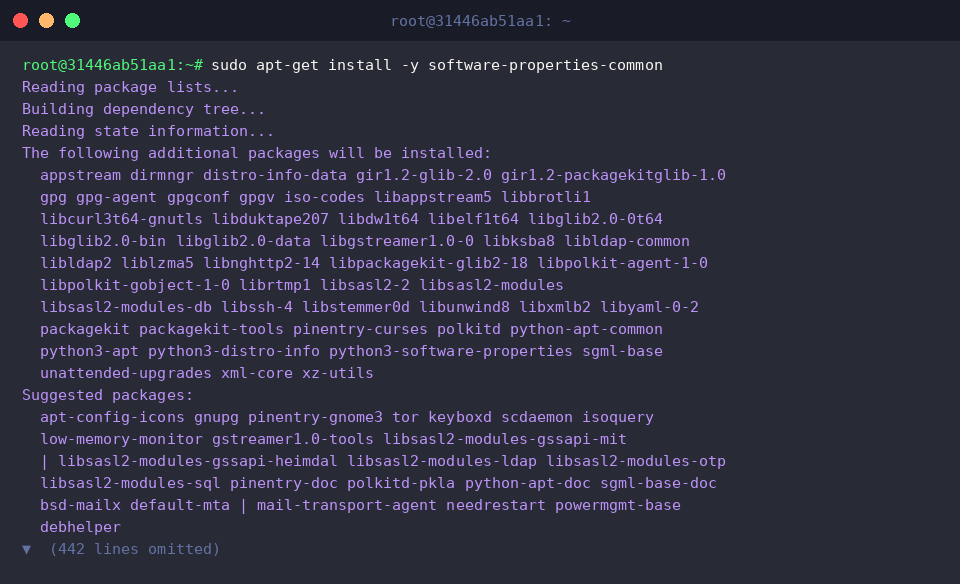
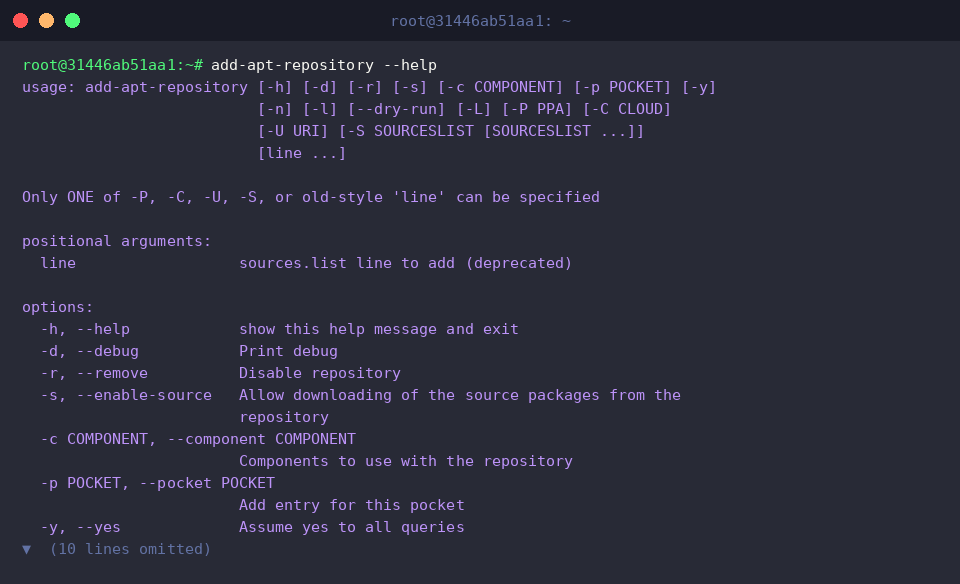
Once installed, inspect the operational parameters and syntax by querying the command’s built-in manual via add-apt-repository --help.
Executing this validation step ensures the binary is correctly linked into your $PATH while introducing flags that streamline unattended automations.
⚙️ [Core Command Flags]
-y, --yes : Skips interactive user prompts by automatically confirming repository additions or deletions.-r, --remove : Deregisters and unlinks an existing PPA or custom archive from the APT source tree.-s, --enable-source : Activates accompanying source package mirrors (deb-src) alongside precompiled binaries.-n, --no-update : Suppresses the automatic package list refresh (apt update) typically executed after modifying sources.-P, --ppa : Explicitly declares the PPA moniker when adding or deleting Launchpad repositories.
2. Attaching a PPA and Deploying Upstream Software
To showcase real-world usage, attach the official Git Core team repository to obtain the latest upstream Git build.
Passing the -y flag suppresses interactive confirmation dialogs, allowing the command to run non-interactively:
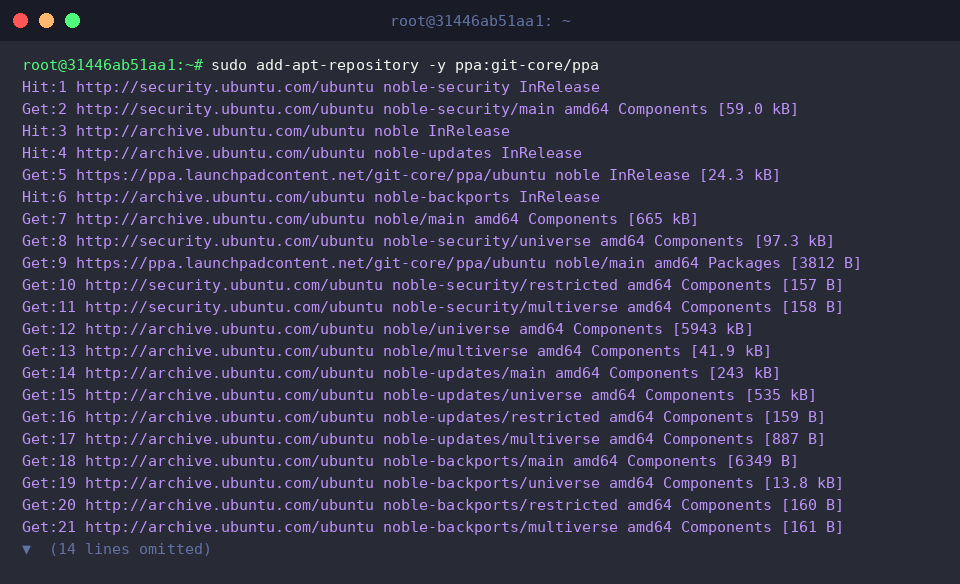
Now that a new package archive has been introduced, trigger sudo apt-get update -qq to instruct APT to query the newly registered endpoints and refresh its local catalog:

With metadata updated, proceed to install or upgrade the utility from the newly attached PPA pool by running sudo apt-get install -y git:
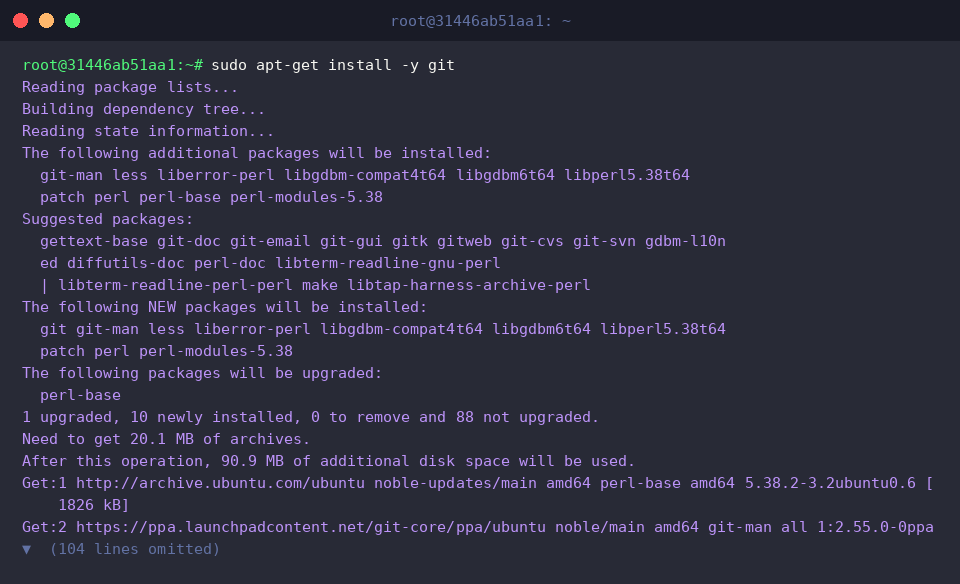
Confirm that your system is actively executing the upstream release provided by the PPA rather than an outdated baseline package:

3. Auditing and Validating Repository Configuration Files
Under modern Ubuntu releases like 24.04 LTS (Noble Numbat), APT uses the modern deb822 format for storing external repository configurations. Run ls -l /etc/apt/sources.list.d/ to inspect the directory and verify the creation of the git-core-ubuntu-ppa-noble.sources definition file:

To guarantee that the newly created record correctly targets Canonical’s official Launchpad infrastructure, inspect the file contents using grep -r "git-core" /etc/apt/sources.list.d/.
The output confirms that the correct URI endpoints and authentication parameters are properly configured:

4. Safely Purging External PPAs and Cleaning Up Cache
Leaving decommissioned or unmaintained PPAs active exposes systems to package conflicts and stalled updates. To cleanly sever the link to the Git Core repository, invoke sudo add-apt-repository --remove -y ppa:git-core/ppa.
Using the --remove switch ensures the utility cleanly excises the target source file from disk:
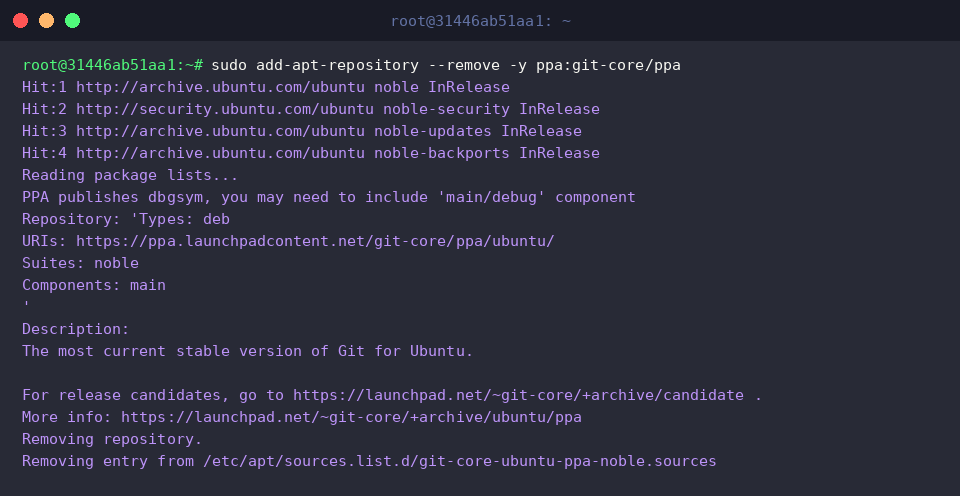
After unlinking the archive, force APT to drop cached package entries related to the purged repository by executing sudo apt-get update -qq:

Finally, verify that the configuration artifacts were completely erased by listing the repository directory with ls -l /etc/apt/sources.list.d/.
Notice that the Git PPA file has vanished, leaving only standard system repository definitions behind:

You now have a complete, production-ready workflow for managing external software sources via add-apt-repository on Ubuntu. Implementing these maintenance steps helps you access modern upstream tooling whenever necessary while keeping package management predictable, clean, and free from dependency drift.