


Overview
Whenever you install an alternative command-line interpreter or build a tailored restricted environment for incoming users, Linux needs an authoritative way to verify that executable as an approved login shell. This guide explores the architecture behind the add-shell utility and the /etc/shells database. We will walk through verifying recognized shells, wiring custom launch scripts into the account provisioning workflow, and maintaining a clean configuration with remove-shell.
1. Inspecting /etc/shells and Auditing Approved System Shells
Security subsystems and authentication daemons rely on /etc/shells as a whitelist of legitimate login environments. Displaying the contents with cat /etc/shells reveals which interpreters standard users may select via utilities like chsh:
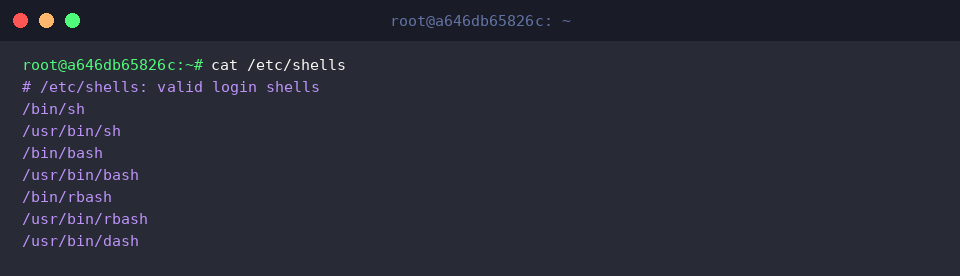
To verify that common default shells match these approved database paths, query the binary resolution for standard utilities using which bash sh:

Cross-referencing the discovered locations—specifically /usr/bin/bash and /usr/bin/sh—against /etc/shells confirms that both standard interpreters are fully sanctioned by the OS.
2. Deploying Zsh and Attempting Registration via add-shell
To demonstrate registering new shells into the system index, begin by fetching the Z shell package with the package manager:

Before modifying system tables, locate where the newly fetched binary resides by calling which zsh:

If the command prints nothing, the interpreter either failed to deploy correctly or remains absent from the current execution environment’s lookup path.
Invoking sudo add-shell $(which zsh) passes the absolute binary location to the database updater. When command substitution evaluates to an empty string due to an unresolved binary, add-shell aborts and outputs its positional syntax requirement:

Confirming whether the target made it into the whitelist can be done quickly using regular expression matching:

The blank output reinforces that /etc/shells remains unaffected when an invalid or nonexistent path is passed to the registration utility.
3. Engineering a Restricted Menu Shell and Registering It with add-shell
System administrators frequently need to lock specific users into bounded console workflows rather than offering unrestricted bash sessions. You can craft a minimal entry point script directly at /usr/local/bin/custom-menu.sh:

To ensure PAM and authentication daemons can launch the script on login, mark the file as executable:

Elevating this script into an authorized system-level login shell is cleanly achieved with sudo add-shell /usr/local/bin/custom-menu.sh:

Review the tail of the shell configuration file to verify successful registration:

The presence of /usr/local/bin/custom-menu.sh at the end of the listing guarantees that the system now treats the wrapper as a validated interactive login shell.
4. Validating User Account Assignment and Performing Teardown with remove-shell
To test real-world behavior, provision a dedicated trial user (testuser) whose profile explicitly points to our newly registered script:

Audit the passwd database to ensure the account record binds properly to the custom path:

The output confirms that testuser is configured to enter directly into /usr/local/bin/custom-menu.sh upon authentication.
Once testing is complete, purge the sandbox account and its associated profile directory:

To prevent orphaned references and maintain strict security hygiene, decommission the script from the allowed shells table using remove-shell:

With the database reference revoked, delete the script binary from the filesystem:

Finally, verify that the entry was cleanly excised from /etc/shells:

Because grep finds no matching pattern, the shell prints the fallback notice, confirming that /etc/shells has returned to its clean baseline state.
Relying on standard tooling such as add-shell and remove-shell avoids common formatting mistakes that occur when hand-editing system configuration files. Incorporating these commands into your automation toolchain guarantees robust, standards-compliant shell management across your Linux infrastructure.