


Overview
This guide walks through the core mechanics of the GNU Assembler (as), tracing the complete pipeline required to turn raw assembly source code into relocatable object files. Starting with system package setup and foundational command-line flags, the tutorial steps through assembling, linking with ld, and validating execution status directly on Ubuntu.
1. Setting Up the Toolchain & Verifying the Assembler Environment
Before assembling machine instructions, install the GNU binary development tools along with gcc to provide an all-inclusive assembly environment.

Operating as the default backend for the GNU toolchain, the as utility (commonly referred to as GAS) translates human-readable assembly instructions into machine-level object files.
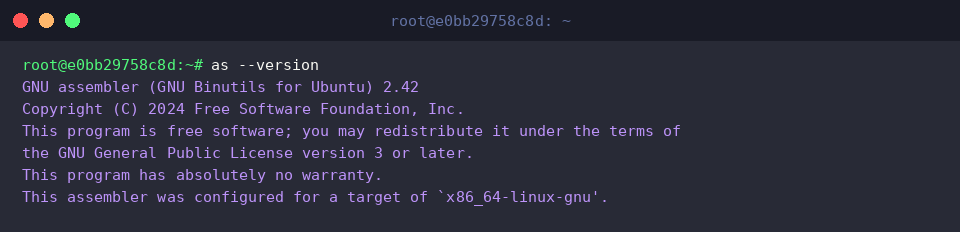
Query the --version flag to confirm installation status and inspect your host architecture target.
⚙️ [Key Command Options]
-o : Specifies the output object file path and filename.-g : Injects symbolic debugging tables for source-level inspection in debuggers like GDB.-a : Emits an assembly listing displaying high-level assembly alongside assembled hex bytes.--32 : Directs the tool to assemble 32-bit machine code.--64 : Assembles 64-bit architecture object code.-v or --version : Displays toolchain version and host configuration data.
2. Writing Sample Assembly Code & Emitting an Object File
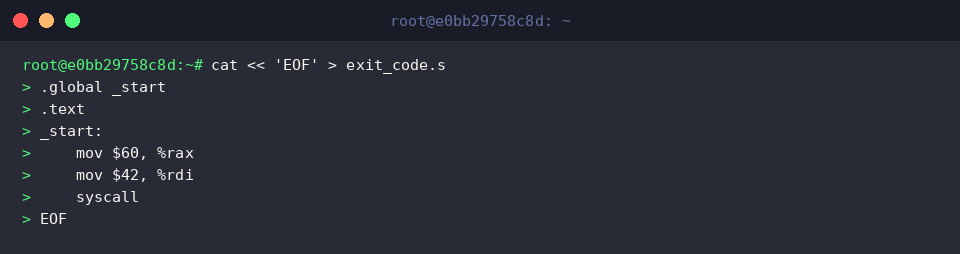
To see assembly in action, prepare a minimal x86-64 source file named exit_code.s configured to trigger a system termination syscall returning status code 42.
Invoke as alongside the -o parameter to assemble the exit_code.s source instructions into the object module exit_code.o.
When the syntax is clean and error-free, the command finishes silently without terminal warnings.

Confirm that the output binary artifact has been generated on disk by querying file attributes with ls -l exit_code.o.

3. Injecting Debug Symbols (-g) and Generating Assembly Listings (-a)
To trace instructions inside debuggers such as GDB, include the -g flag to embed complete debug symbols into exit_code_debug.o.
The process completes without output messages once assembly finishes successfully.

When analyzing how source instructions map to raw machine instructions, leverage the -a=exit_code.lst option.
This run simultaneously creates the object file exit_code.o and dumps a detailed opcode translation mapping into exit_code.lst.

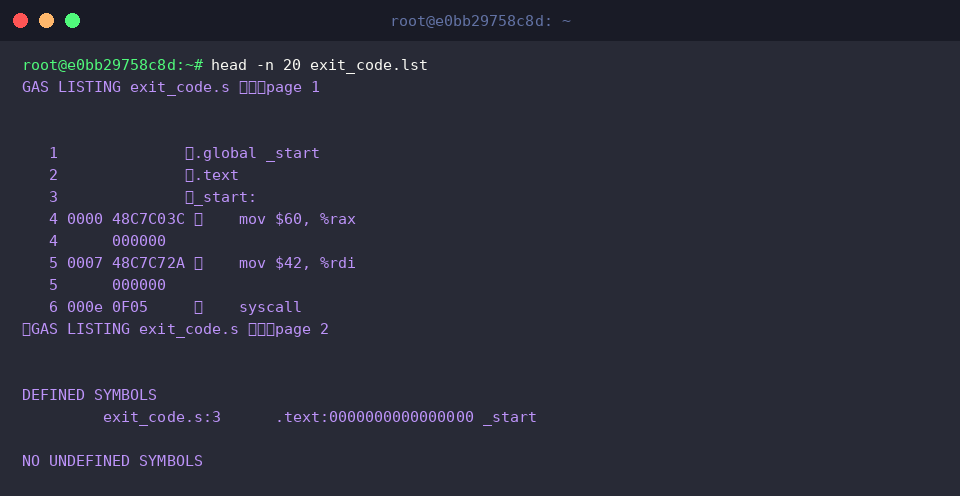
Inspect the generated listing layout by outputting its top lines with head -n 20 exit_code.lst.
The output correlates statement line counts, code offsets, and the exact hexadecimal machine opcodes emitted by the assembler.
4. Linking with ld, Running the Binary, and Validating Exit Codes
Because relocatable object files cannot be executed independently, run ld -o exit_program exit_code.o to link exit_code.o into the standalone binary exit_program.
The linker resolves internal entry symbols silently when no errors are detected.

Launch the finalized executable directly by running ./exit_program.
Because this lightweight routine performs an immediate exit without writing characters to stdout, the shell prompt returns without terminal output.

Inspect the exit status generated by the preceding execution with the echo "종료 코드: $?" command.
The process completed its execution path cleanly, displaying a termination status of 0.

This walkthrough covered the practical essentials of utilizing the GNU as assembler on Ubuntu. Assembling raw source, producing listing tables, and linking executables from scratch provides practical insight into how Linux software operates at the lowest level.