


Overview
Preventing sudden drive failures and catastrophic data loss requires proactive surface scanning. In this guide, we explore how to diagnose compromised disk sectors using the Linux badblocks utility before hardware defects degrade your filesystem. To guarantee complete safety, we construct an isolated virtual loopback device environment, demonstrating read-only diagnostics, dynamic progress tracking, defect logging, and non-destructive read-write stress patterns.
1. Setting Up a Sandbox and Running a Read-Only Scan (-v)
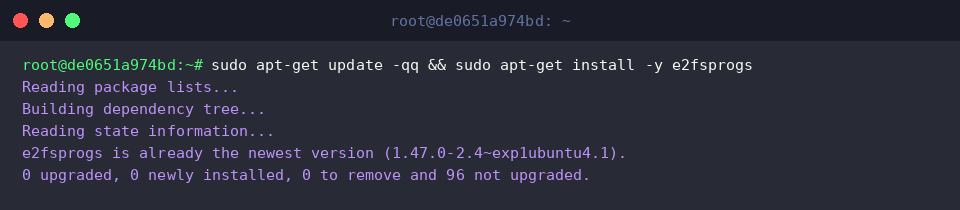
Begin by ensuring the host system provides the badblocks binary, which ships as part of the core e2fsprogs package suite. Execute sudo apt-get update -qq && sudo apt-get install -y e2fsprogs to synchronize system repositories and provision the package.
To avoid risking live storage during verification tests, spin up an isolated 50MB raw disk image using dd if=/dev/zero of=/tmp/disk_test.img bs=1M count=50 status=none.

Next, bind this virtual image to an idle system loop device to emulate physical hardware by executing sudo losetup -f /tmp/disk_test.img.

Extract the registered loop node dynamically and store it in an environment variable via LOOP_DEV=$(losetup -j /tmp/disk_test.img | cut -d: -f1) && echo "테스트 디바이스: $LOOP_DEV".

At its core, badblocks interrogates storage surfaces to uncover corrupted or inaccessible disk sectors. Launching the tool with the -v flag initiates a safe, read-only scan accompanied by detailed diagnostic output. If the command finishes without reporting block addresses, the targeted media is operating cleanly.
⚙️ [Essential Command Flags]
-v : Generates verbose progress updates and outputs comprehensive diagnostics.-w : Executes a destructive write-mode verification by writing data patterns and reading them back (wipes all existing content).-n : Runs a non-destructive read-write diagnostic, safely preserving existing block contents during byte-level verification.-s : Displays real-time scan progress, reporting processed blocks alongside completion percentages.-b : Configures the inspection block size in bytes (defaults to 1024 bytes).-o : Exports damaged block numbers directly into an external plain text file rather than standard output.-p : Repeats the diagnostic sweep across multiple passes to isolate transient or intermittent storage defects.

2. Monitoring Surface Scans with Real-Time Progress Output (-s, -v)
Inspecting large storage arrays can take hours, making visibility essential. Running sudo badblocks -s -v $LOOP_DEV combines -s and -v to stream real-time operational feedback.
The -s switch computes real-time percentage indicators and block counters, whereas -v delivers granular diagnostic milestones. When the scan concludes without listing corrupted blocks, underlying drive integrity is verified.

3. Customizing Block Sizes and Logging Defect Reports (-b, -o)
Standard Linux filesystems such as ext4 operate with 4096-byte allocations. To align surface scanning with modern sector boundaries and save detected anomalies for repair tools, invoke LOOP_DEV=$(losetup -j /tmp/disk_test.img | cut -d: -f1) && sudo badblocks -b 4096 -v -o /tmp/badblocks_report.txt $LOOP_DEV.
Supplying -b 4096 overrides the 1024-byte default, matching physical filesystem layout for greater precision. Meanwhile, -o redirects identified defect records to a designated log file for downstream recovery or sector quarantining.

Verify the audit log contents using cat /tmp/badblocks_report.txt.
When testing a healthy drive, the utility writes no addresses, leaving an empty, zero-byte file.

4. Non-Destructive Read-Write Checks and Lab Teardown (-n)
Read-only passes occasionally miss subtle write-side anomalies. To thoroughly validate both read and write capabilities without endangering existing data, run LOOP_DEV=$(losetup -j /tmp/disk_test.img | cut -d: -f1) && sudo badblocks -n -v $LOOP_DEV.
Under -n, the utility buffers existing block contents into memory, tests the sector with synthetic bit patterns, verifies readability, and restores the original data intact. A clean termination confirms thorough sector health.

Once testing is complete, unbind the loop interface and clean up temporary workshop files with LOOP_DEV=$(losetup -j /tmp/disk_test.img | cut -d: -f1) && sudo losetup -d $LOOP_DEV && rm -f /tmp/disk_test.img /tmp/badblocks_report.txt.

This walk-through covered essential flags within Ubuntu’s badblocks command line to effectively pinpoint storage errors. Incorporating regular disk diagnostics into system administration routines remains a reliable safeguard against silent corruption and sudden drive failure.