


Overview
Inter-process communication in modern Linux environments relies heavily on D-Bus as its primary messaging backbone. While graphical desktop environments and low-level daemons interact with the bus programmatically, system administrators can inspect and control this bus directly from the console using busctl. This practical walkthrough explores essential workflows—from listing active endpoints to querying service states and invoking systemd methods over the wire.
Verifying Connectivity and Enumerating Registered Endpoints
Before interacting with the messaging bus, ensure that the background broker is actively processing requests by verifying the service status via systemctl is-active dbus.
An active response confirms that the system bus socket is open and ready to dispatch incoming messages.

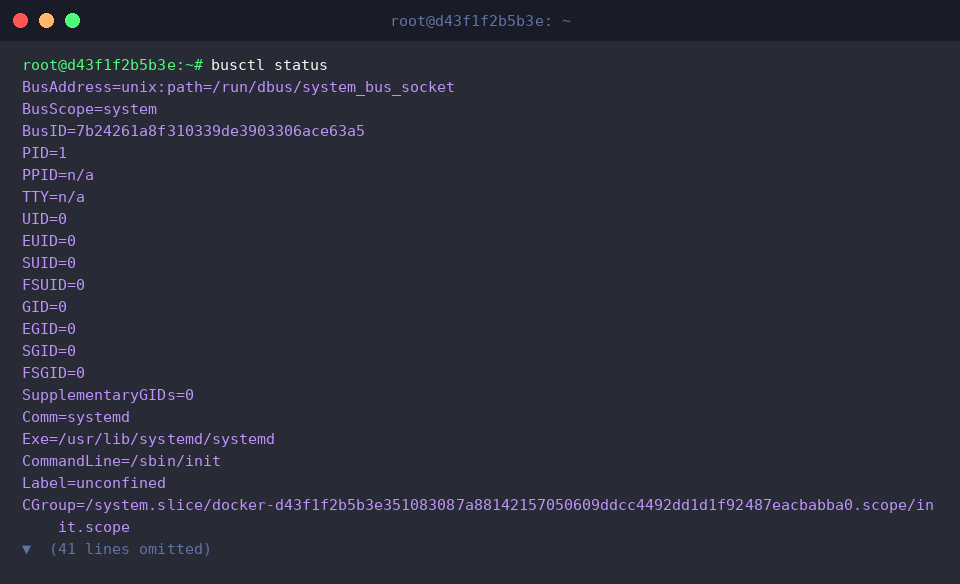
Running busctl status reveals overall runtime parameters of the active connection, including socket addresses, bus scope, and process ownership.
⚙️ [Key Options]
--user : Diverts queries to the per-user session bus rather than the machine-wide bus.--system : Connects to the standard host-wide system bus (default behavior).--address= : Overrides standard discovery to target an explicit D-Bus socket path.--no-pager : Flushes output directly to the console without piping through a pager utility.--acquired : Limits results strictly to names currently owned by operational processes.--activatable : Highlights dormant services configured for on-demand launch by systemd.--match= : Configures filter patterns to isolate matching signals and message payloads during monitoring.
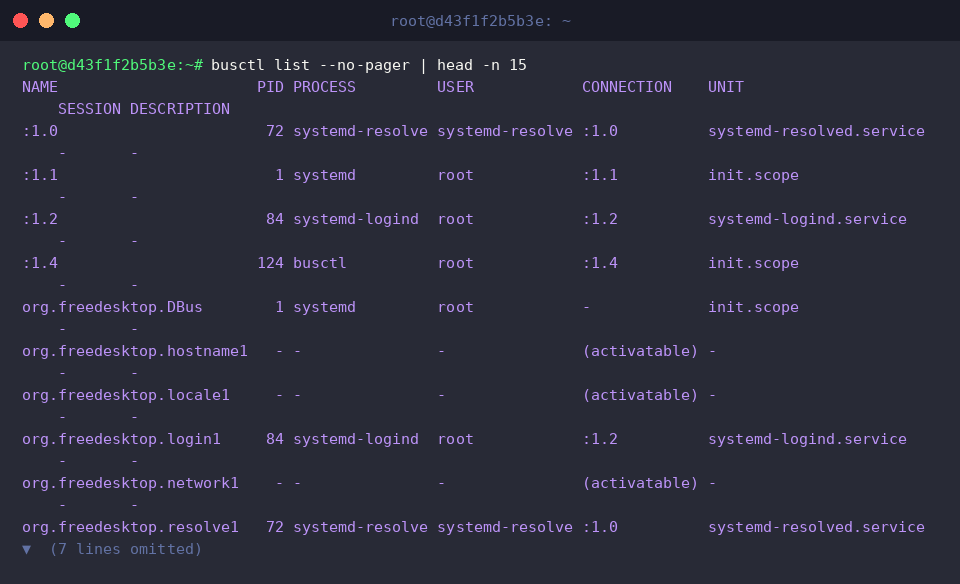
Executing busctl list --no-pager | head -n 15 outputs the first 15 registered bus endpoints, displaying both live and activatable services.
The generated table correlates unique peer IDs (:1.x) and canonical reverse-DNS identifiers with their respective process IDs (PIDs) and system credentials.
Traversing Object Hierarchies and Performing Introspection
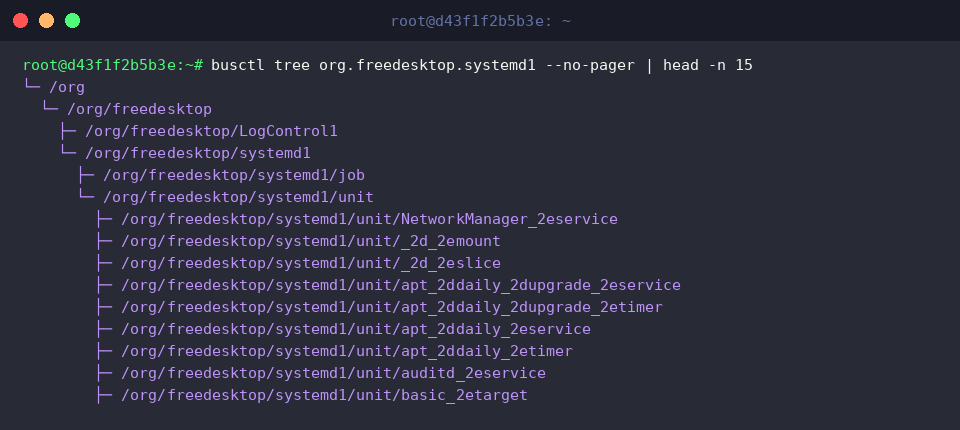
The command busctl tree org.freedesktop.systemd1 --no-pager | head -n 15 renders the internal object layout of org.freedesktop.systemd1 as a directory-like structure.
Much like a standard Linux filesystem hierarchy, systemd exposes individual managed units, running jobs, and manager targets as distinct, traversable object paths.
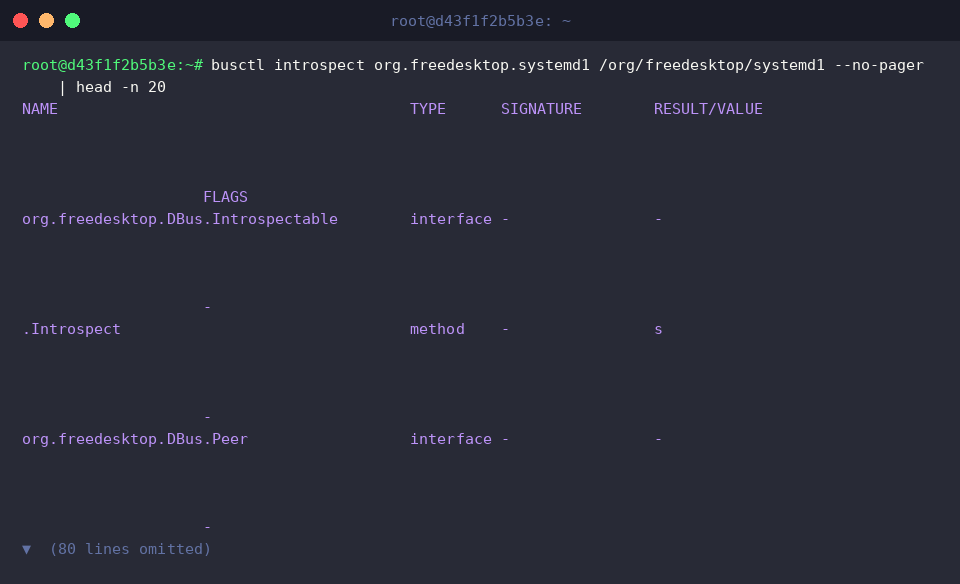
To examine the methods and properties supported by an endpoint, run busctl introspect org.freedesktop.systemd1 /org/freedesktop/systemd1 --no-pager | head -n 20.
This introspection query retrieves the interface definitions hosted at /org/freedesktop/systemd1, revealing parameter signatures for signals, read/write properties, and callable RPC functions exposed under org.freedesktop.systemd1.Manager.
Inspecting Live System Properties On the Fly
Running busctl get-property org.freedesktop.systemd1 /org/freedesktop/systemd1 org.freedesktop.systemd1.Manager Version queries the active version string exposed by systemd’s manager interface.
The return value reveals a string type (s) containing 255.4-1ubuntu8.10, indicating the exact build running on the current host.

To identify the underlying hardware architecture recognized by the init system, run busctl get-property org.freedesktop.systemd1 /org/freedesktop/systemd1 org.freedesktop.systemd1.Manager Architecture.
The output confirms that the operating system and daemon instance operate on an x86-64 hardware platform.

The command busctl get-property org.freedesktop.systemd1 /org/freedesktop/systemd1 org.freedesktop.systemd1.Manager SystemState fetches the overall health and operational phase of the host.
A returned value of running signals that the boot sequence completed successfully and all required system targets remain operational.

Triggering Remote Methods and Fetching Service Inventories
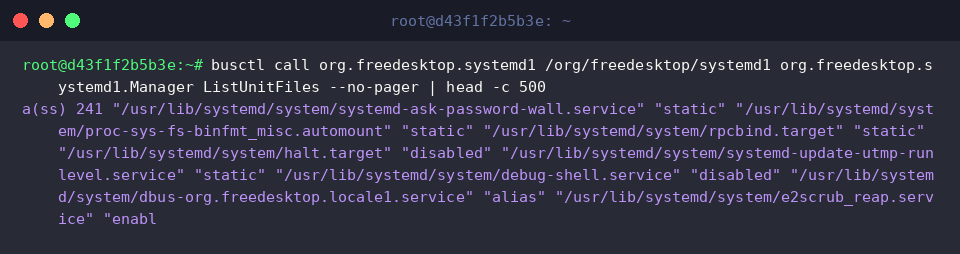
You can trigger remote procedure calls directly from the command line using busctl call org.freedesktop.systemd1 /org/freedesktop/systemd1 org.freedesktop.systemd1.Manager ListUnitFiles --no-pager | head -c 500.
The returned payload is formatted as a structured array of string pairs (a(ss)), pairing the canonical configuration path of each unit with its enablement state (such as enabled, disabled, or static).
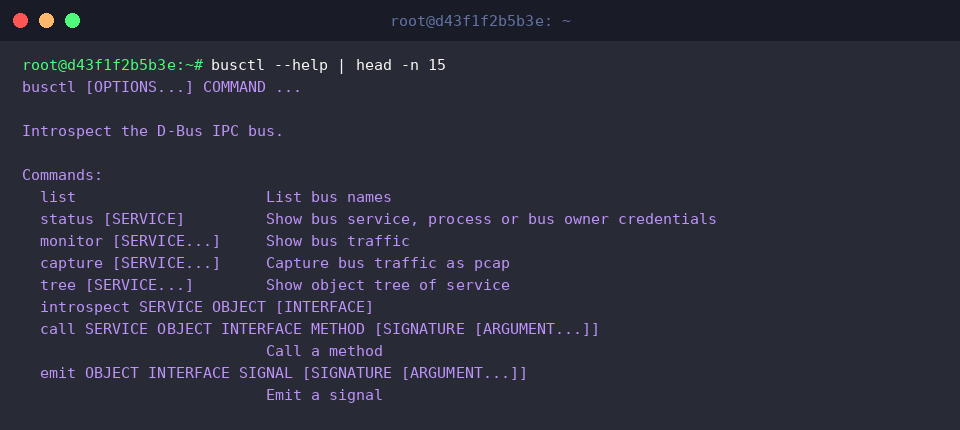
Running busctl --help | head -n 15 outlines the built-in command syntax and displays commonly used administrative subcommands.
From endpoint listing (list) and status inspection (status) to tree traversal (tree), interface introspection (introspect), method execution (call), and event broadcasting (emit), busctl serves as a comprehensive toolkit for troubleshooting IPC on modern Linux distributions.
Navigating D-Bus does not require writing bespoke code or working through cumbersome APIs. Armed with busctl, engineers can easily diagnose inter-service communications, audit running daemons, and interact with core subsystems straight from the command line.