


Overview
Defined under the POSIX standard, c99 serves as a dedicated compiler interface built specifically for compiling ISO/IEC 9899:1999 compliant C applications. Rather than sifting through dense manual pages, this hands-on guide walks you through setting up a functional toolchain on Ubuntu, compiling real source code, and leveraging key flags. You will progress from elementary builds to linking external libraries, toggling preprocessor flags, and applying performance optimizations.
1. Setting Up the C99 Toolchain and Verifying the Environment
Before compiling software, ensure your host environment contains the required build utilities by refreshing the local package index and installing the build-essential bundle.

Verify where the c99 executable is located on your system path with which c99.

Inspect the compiler’s build version by executing c99 --version. On modern Ubuntu installations, this wrapper invokes GCC under standard C99 rules.
⚙️ [Essential Command-Line Flags]
-c : Assembles source files into object code (.o) without triggering the link phase.-o : Specifies the output filename for the resulting binary.-O : Directs the compiler to apply automated optimizations for enhanced execution speed.-g : Injects debugging symbols into the binary to enable GDB inspection.-I : Prepends a directory path to the header file resolution list.-l : Instructs the linker to resolve symbols against a designated external library.-D : Sets a preprocessor macro prior to running the compilation pass.

2. Writing and Compiling a Baseline C99 Program
A hallmark addition of the C99 standard is the ability to declare iterator variables directly inside for loop headers. Create a simple demonstration file named hello_c99.c to test this functionality.
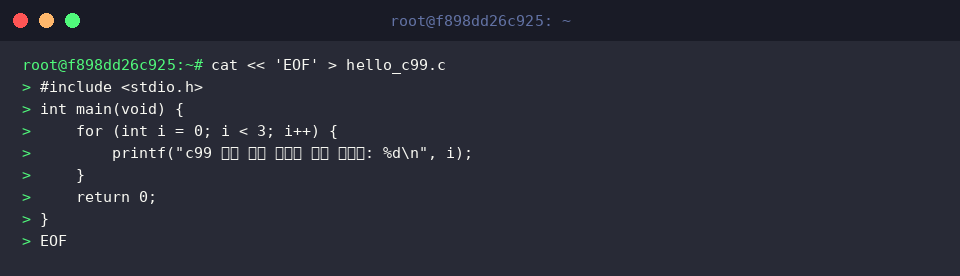
Invoke c99 to process hello_c99.c, supplying the -o parameter to name the generated binary hello_c99.

Run the freshly compiled hello_c99 binary to ensure the iterations execute and output as expected.

3. Linking the Math Library (-lm) and Defining Preprocessor Macros (-D)
To practice handling external math functions and conditional compilation blocks, write a new source file called math_demo.c that incorporates math.h and checks for a DEBUG macro.
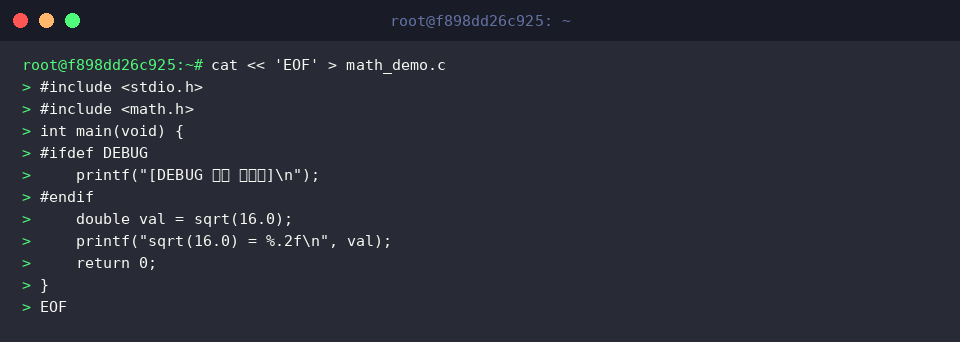
Compile the program by passing -DDEBUG to trigger the debug routine and -lm to resolve the mathematical square root symbols during linking.

Launch math_demo to confirm that the conditional debug log displays alongside the evaluated mathematical result.

4. Enforcing Compiler Warnings (-Wall) and Tuning Optimization (-O2)
To analyze optimization routines and diagnostics, create a compute-focused benchmark program named opt_demo.c that sums all integers up to 1,000,000.
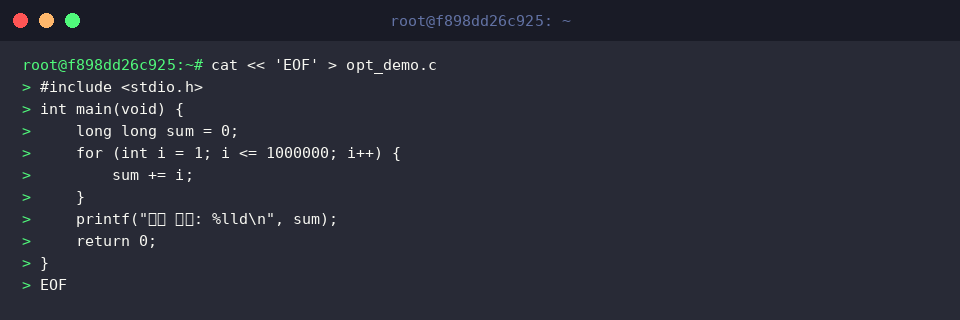
Compile opt_demo with -O2 to generate performant assembly instructions, while pairing -Wall and -Wextra to catch potential logic inconsistencies. This practice helps ensure stable, clean, and highly optimized binaries.

Execute opt_demo to check that the arithmetic accumulation runs smoothly and outputs the final sum.

This walkthrough covered the fundamental mechanics of utilizing Ubuntu’s POSIX-compliant c99 utility—from initial environment configuration and standard-compliant syntax compiling to advanced library linking and build-flag customization. Incorporating these compilation practices into your development workflow will yield more portable, robust, and highly optimized C software.