


Overview
Migrating historical termcap descriptors to the modern terminfo database format is an essential task when maintaining legacy terminal definitions across modern Linux distributions. The captoinfo utility bridges this gap by automatically translating antique terminal capabilities into standardized, compiled entries. This walkthrough covers installing the necessary tools on Ubuntu, constructing a test profile, translating syntax attributes, and verifying the output with compiler diagnostics to ensure seamless terminal emulation.
1. Installing the ncurses Suite and Inspecting the Terminal Session
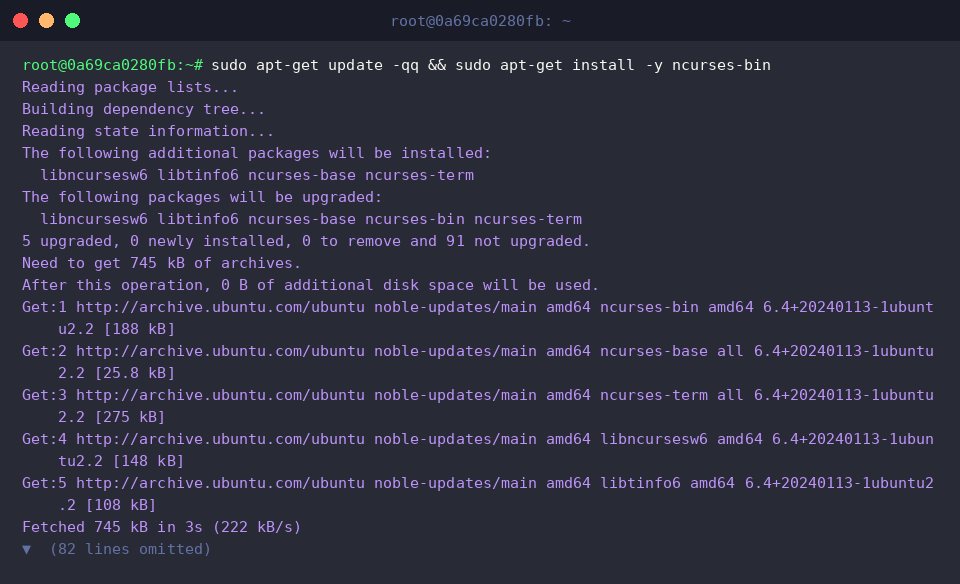
Begin by deploying the ncurses-bin package via APT, which provides the full suite of terminal management binaries alongside captoinfo.
Querying the active terminal identifier via echo $TERM helps pinpoint the current session’s control profile.
An output of dumb indicates an unadorned console devoid of cursor addressing, color styling, or advanced escape sequences.

Locate the binary on the system search path by running which captoinfo to confirm its availability.
At its core, captoinfo parses vintage BSD-style termcap text profiles and maps their idiosyncratic two-letter keys to modern, structured terminfo definitions.
⚙️ [Essential CLI Flags]
-v : Enables verbose diagnostic tracking throughout the conversion pipeline.-V : Prints release and build metadata for the executable.-1 : Restricts output to a single capability entry per line for cleaner diffing.-w : Constrains output text to a designated maximum line width (column limit).-f : Formats complex conditional string macros into split, readable multi-line blocks.

2. Generating a Prototype termcap File and Running Basic Conversion
Construct a synthetic sample.termcap file inside your home folder to demonstrate how classic terminal definitions behave.

Inspect the prototype definition by dumping its contents with cat ~/sample.termcap.
The output showcases standard termcap conventions: colon-delimited (:) tokens, screen geometry (co#80, li#24), automatic right margins (am), and escape sequences designated for clearing the canvas (cl).

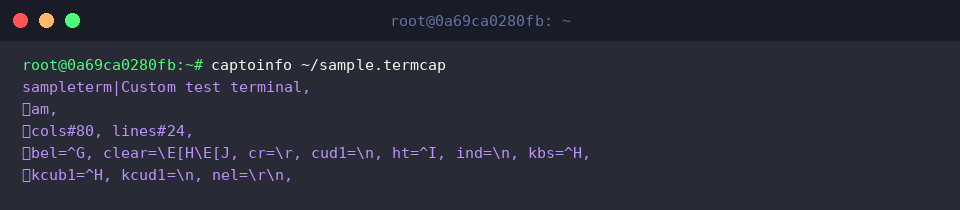
Pass the source file directly into captoinfo ~/sample.termcap to generate its modern counterpart.
Notice that the syntax shifts immediately: field separators transition from colons (:) to commas (,), while archaic two-letter mnemonics like co and li translate into canonical terminfo identifiers such as cols#80 and lines#24.
3. Fine-Tuning Formatting and Enabling Verbose Logs (-v, -w)
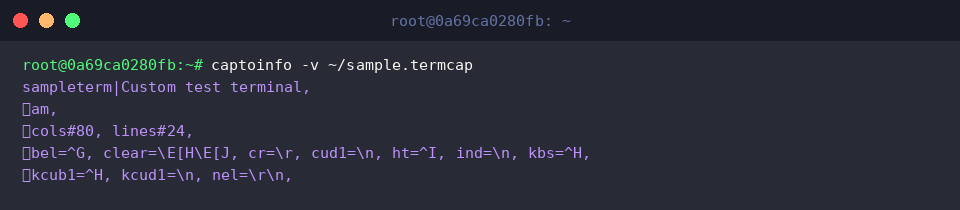
Executing captoinfo -v ~/sample.termcap introduces verbose logging to the translation workflow.
Activating -v exposes internal capability parsing steps, offering transparent insights into how each flag and string pattern is interpreted.
Limit output wrapping to 60 columns using captoinfo -w 60 ~/sample.termcap.
The -w parameter breaks lengthy terminal parameter strings across neatly aligned boundaries, dramatically improving legibility on narrower displays and inside version control diffs.

4. Exporting Translated Data and Validating with the tic Compiler
Direct the converted terminal definition into a permanent file via captoinfo ~/sample.termcap > ~/sample.terminfo.
Redirecting stdout (>) captures the formatted source, creating a clean configuration artifact ready for database compilation or distribution across host systems.

Validate structural integrity without modifying the system’s compiled directory using tic -c ~/sample.terminfo.
The -c flag enforces strict syntax checking against the terminfo grammar; a silent return without error warnings confirms that the translated file is entirely compliant and ready for compilation.

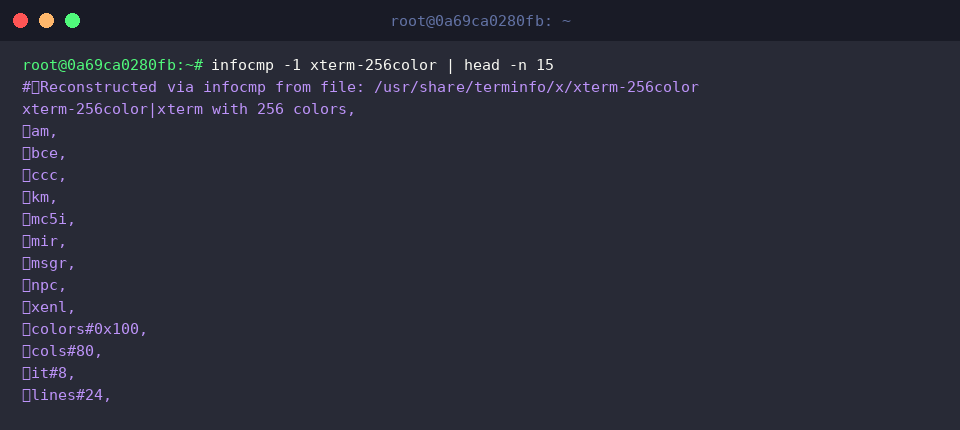
Compare the newly generated definition against standard system profiles by running infocmp -1 xterm-256color | head -n 15.
Inspecting xterm-256color through infocmp reveals identical attribute naming conventions and organizational patterns to those produced by captoinfo, affirming that your converted entry follows official distribution standards.
You now have a reliable methodology for upgrading legacy termcap profiles into fully compatible terminfo entries under Ubuntu.
Leveraging captoinfo alongside verification tools like tic streamlines terminal modernization and preserves compatibility across both historic systems and modern console environments.