


Overview
Configuring new storage drives on production Linux hosts often feels cumbersome when relying on the legacy, command-driven prompts of fdisk. In contrast, cfdisk delivers an interactive curses-based Terminal User Interface (TUI) that dramatically simplifies partition scheme management while reducing operator error. This walk-through covers end-to-end disk administration: deploying necessary utilities, provisioning an isolated virtual loopback device to practice without risking physical hardware, building GPT tables, formatting an ext4 filesystem, and verifying the final mount point.
Installing cfdisk and Inspecting System Storage
To equip your system with cfdisk alongside essential low-level disk manipulation tools, synchronize repository metadata and install the core binaries using apt-get update -qq && apt-get install -y util-linux parted.
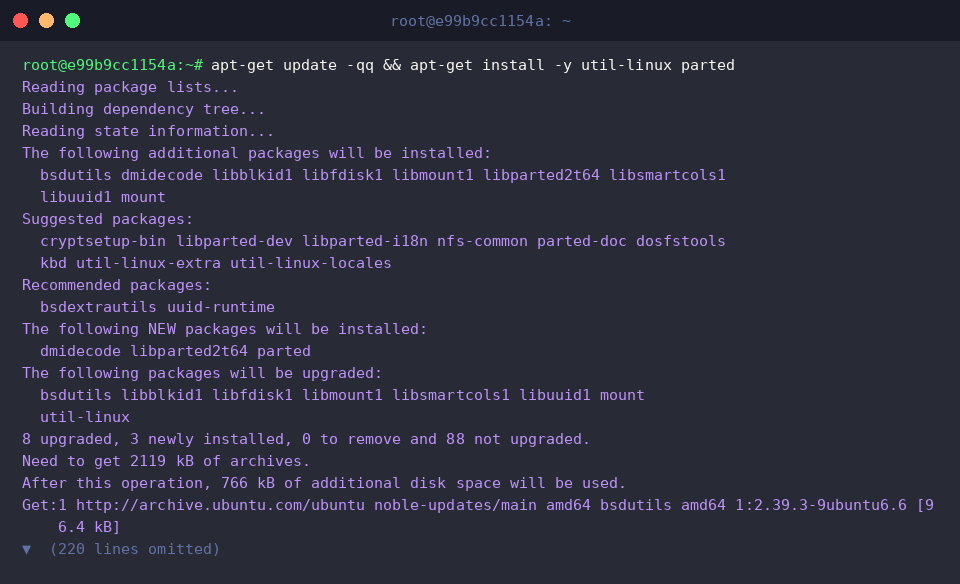
Built around the ncurses library, cfdisk lets administrators visually inspect, allocate, resize, and commit partition changes through an intuitive dashboard.
Verify that the package is functional and review the installed release by running cfdisk --version.
⚙️ [Key Runtime Flags]
-z, --zero : Bypasses existing partition headers and presents an uninitialized, blank partition table.-L, --lock[=mode] : Acquires a device-level advisory lock to safeguard against concurrent disk write collisions.--color[=when] : Configures colorized syntax highlights across the terminal interface.-V, --version : Displays package release information and terminates.-h, --help : Prints available command-line arguments and parameter syntax.

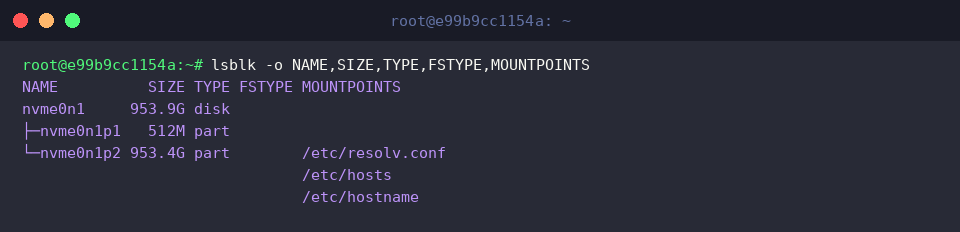
Prior to initiating any partition layout modifications, survey the existing storage topology and active filesystems with lsblk -o NAME,SIZE,TYPE,FSTYPE,MOUNTPOINTS.
Mapping out attached block devices, their underlying volume formats, and designated target directories prevents accidental disruption of critical root or boot filesystems.
Creating a Safe Virtual Disk Image for Practice
Set up an isolated scratch directory to stage experimental storage artifacts by executing mkdir -p /tmp/disk-lab && cd /tmp/disk-lab.

Rather than manipulating physical disks directly, allocate a 1 GB raw zero-filled container file with dd if=/dev/zero of=/tmp/disk-lab/virtual_disk.img bs=1M count=1024 status=progress.

Confirm that the virtual disk image has reached its intended target footprint by checking file attributes via ls -lh /tmp/disk-lab/virtual_disk.img.

Exploring cfdisk Options and Initializing the Partition Table
Inspect the complete manual parameters and execution switches supported by the utility using cfdisk --help.

To bootstrap our container file with a clean GPT disk label and establish two equal ~500 MB partitions for validation, run parted -s /tmp/disk-lab/virtual_disk.img mklabel gpt mkpart primary ext4 1MiB 500MiB mkpart primary ext4 500MiB 100%.

Test command construction against the image while instructing cfdisk to operate in zeroed-table mode via cfdisk -z /tmp/disk-lab/virtual_disk.img --help || true.

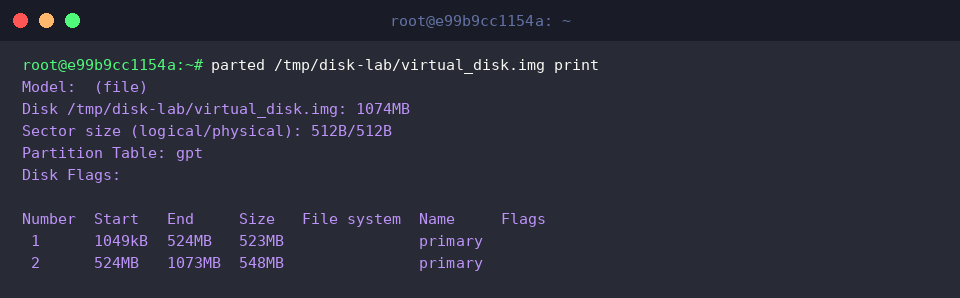
Review the partition structure configured on the image container using parted /tmp/disk-lab/virtual_disk.img print.
The output confirms a valid GPT disk signature hosting two discrete 500 MB allocations ready for filesystem provisioning.
Attaching Loop Devices, Formatting ext4, and Mounting
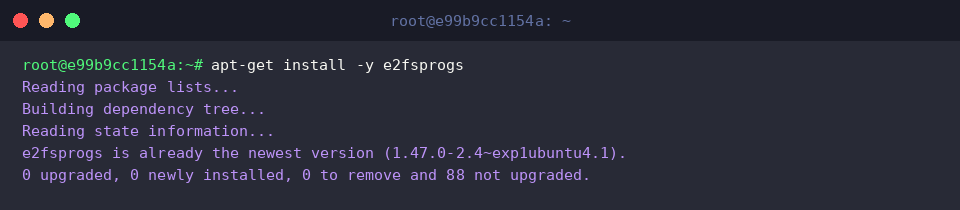
Deploy the standard Linux filesystem management suite by executing apt-get install -y e2fsprogs.
To expose the raw image partitions as kernel-routable block devices, bind the file through a loop interface with partition scanning enabled: LOOP_DEV=$(losetup --find --show -P /tmp/disk-lab/virtual_disk.img) && echo "Connected to: $LOOP_DEV".
The kernel successfully assigns the virtual container to /dev/loop0.

Inspect how the kernel recognizes the sub-partitions of the attached loop controller with lsblk ${LOOP_DEV}.
Both nested volumes (loop0p1 and loop0p2) are visible as accessible block devices.

Format the initial slice with an ext4 structure using mkfs.ext4 -F ${LOOP_DEV}p1.
This step writes inode tables, superblocks, and journal spaces needed for standard OS file operations.

Create a target mount point on the host filesystem and attach the volume using mkdir -p /mnt/virtual_disk && mount ${LOOP_DEV}p1 /mnt/virtual_disk.

Validate filesystem health, accessible capacity, and active mount parameters with df -h /mnt/virtual_disk.
The storage is mounted cleanly and ready for live directory operations.

Compared to conventional text-driven partition editors, cfdisk strikes an optimal balance between low-level terminal accessibility and visual safety. Adopting it in your standard systems maintenance toolkit streamlines disk repartitioning tasks across modern Linux environments.