


Overview
Every user account on a Linux machine relies on an assigned default shell to handle commands when an interactive session begins. This practical walkthrough examines how the chsh (change shell) utility operates under the hood in Ubuntu. By tracing configuration updates across the /etc/shells registry and the core /etc/passwd user database, you will gain a clear architectural understanding of how the system manages login shell assignments safely.
Inspecting the Active Session Shell and Available System Shells
Before modifying any configuration files, determine which shell interpreter currently drives your command line by inspecting the $SHELL environment variable with echo $SHELL.
The resulting output confirms that the operating system assigns /bin/bash to the active session by default.

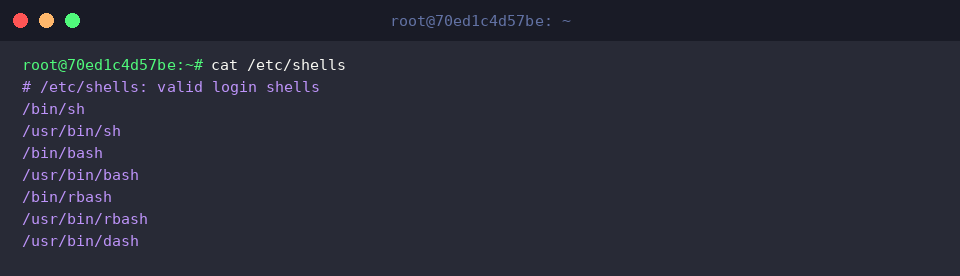
To prevent security vulnerabilities and misconfigurations, Linux accounts cannot be arbitrarily mapped to untrusted binaries; target shells must be explicitly recognized by the operating system. Print the roster of approved interpreters by running cat /etc/shells.
The listing highlights standard login targets like /bin/sh and /bin/bash, proving they are pre-authorized for account assignment.
Installing Zsh and Validating Approved Shell Paths
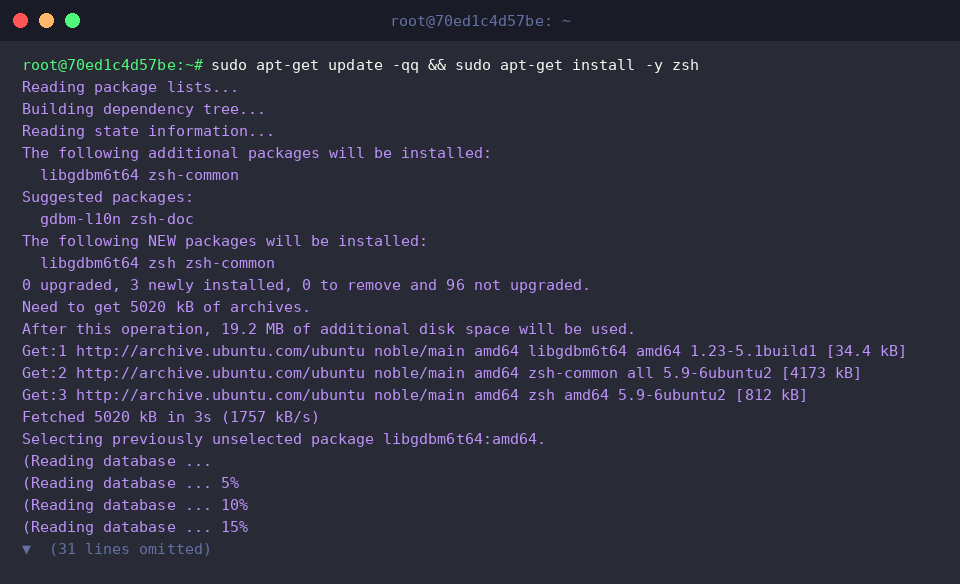
To test swapping to an alternative command-line environment, deploy the Z Shell (zsh) through the native package management system via sudo apt-get update -qq && sudo apt-get install -y zsh.
Once package unpacking finishes, pinpoint the absolute storage location of the compiled executable using which zsh.
The output demonstrates that the binary is located at /usr/bin/zsh.

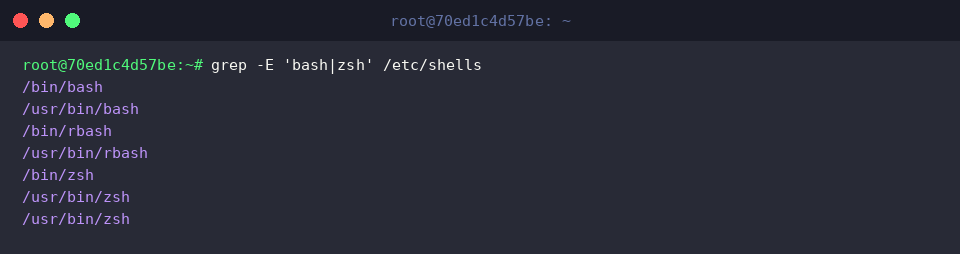
Because non-root shell modifications require the destination path to exist within the system’s security manifest, inspect the configuration file by invoking grep -E 'bash|zsh' /etc/shells.
Both /bin/zsh and /usr/bin/zsh appear in the search results, validating that the package manager registered the shell and made it available for immediate use with chsh.
Switching User Login Shell via the chsh Utility
Before executing user account modifications, verify your current identity with id -un.
The terminal confirms that the current shell session is authenticated under the root administrative account.

Reassign the default login interpreter to Zsh by executing chsh -s $(which zsh).
Command substitution evaluates cleanly to /usr/bin/zsh, and the command returns to the prompt without errors, signaling a successful update.

Internally, chsh commits this update directly into the primary account records file. To confirm that the change took effect, query the record with grep "^$(whoami):" /etc/passwd.
The seventh colon-separated field now displays /usr/bin/zsh, guaranteeing that subsequent terminal sessions will boot directly into Zsh.

Understanding chsh Mechanics and Restoring the Original Shell
After completing your experiments, revert your account settings back to the default GNU Bash interpreter using chsh -s /bin/bash.
The command executes quietly, confirming that /bin/bash has been reinstated as the primary login shell.

Verify the final state of the user credentials database one last time by running grep "^$(whoami):" /etc/passwd.
The trailing parameter indicates that /bin/bash is once again active, demonstrating that the environment has been returned cleanly to its original baseline.

By mastering the interplay between chsh, the /etc/shells white-list, and /etc/passwd account records, you can comfortably customize and troubleshoot your terminal environment across any modern Ubuntu installation.