


Overview
Navigating deeply nested filesystems within a headless terminal often becomes tedious when relying solely on traditional utilities like ls. The tree command solves this by rendering entire directory architectures into clean, branch-style hierarchies right in your shell. This walkthrough explores everything from setting up the package on Ubuntu to leveraging advanced flags for recursion limits, permission auditing, selective regex filtering, and generating shareable HTML blueprints for project documentation.
Installing the Utility and Generating Initial Tree Maps
Before diving into structural mapping, ensure your local repository indices are up to date and install the standalone tree package via APT.
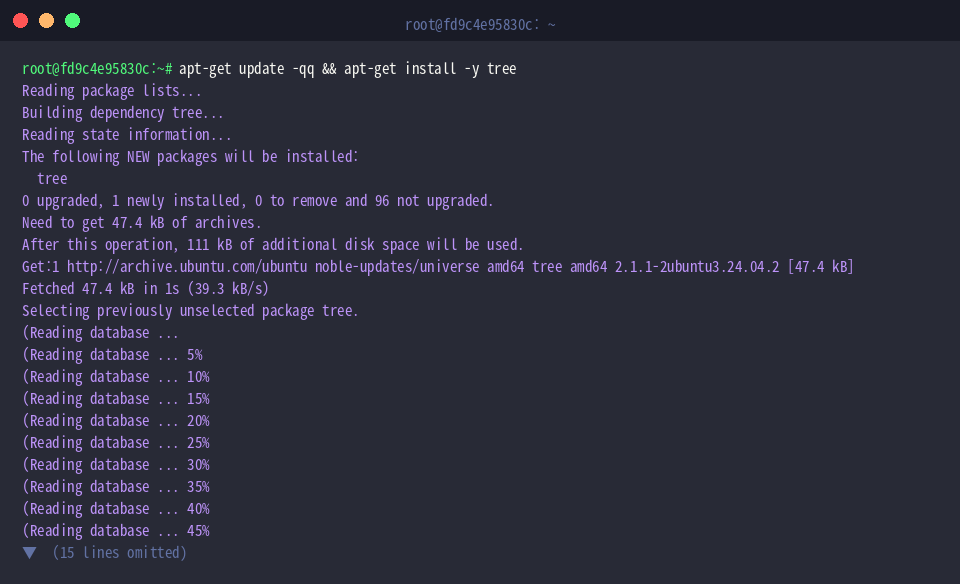
To create a realistic playground for testing various command-line arguments, set up a mock multi-tier directory structure using mkdir -p demo_project/src demo_project/docs demo_project/tests.

Next, populate the skeleton workspace with representative source and documentation files using the touch utility.

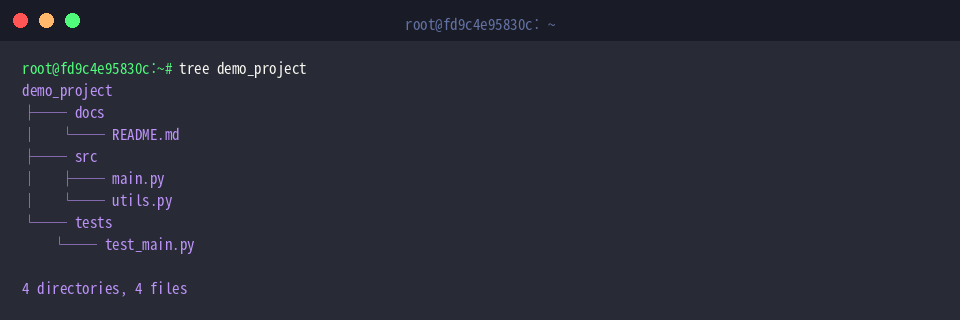
When invoked without extra parameters, tree starts at the targeted path, recurses through every underlying branch, and displays both the visual layout and an aggregate count of files and folders discovered.
⚙️ [Essential Command Flags]
-a : Reveals hidden filesystem objects, including dotfiles.-d : Restricts output exclusively to directories, omitting plain files.-L level : Restricts recursion depth to the specified integer threshold.-f : Displays the full relative path prefix alongside each entry.-p : Appends standard file permission masks (e.g., -rw-r--r--).-h : Formats file allocations in human-readable capacities (KB, MB, GB).-s : Outputs file sizes strictly in raw byte counts.-I pattern : Excludes entries matching specified wildcard rules.
Restricting Recursion Depth (-L) and Isolating Folders (-d)
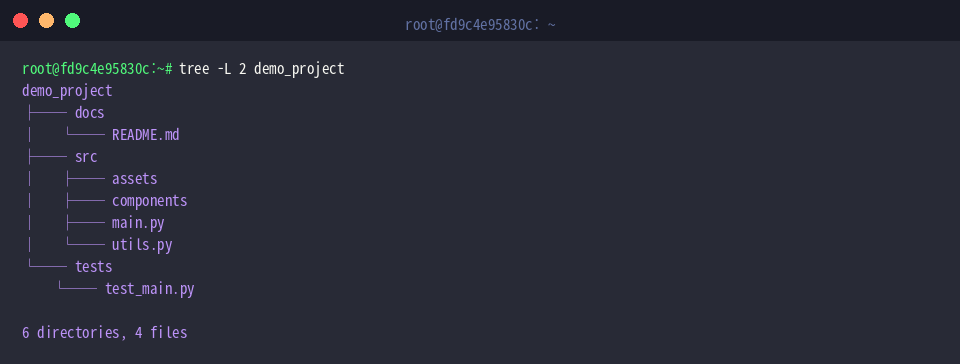
Deep hierarchies can quickly overwhelm terminal scrollback buffers. To simulate a deeper environment, construct an additional layer of nested subdirectories with mkdir -p demo_project/src/components demo_project/src/assets/images.

Place dummy application assets and source components into these newly minted subpaths via touch demo_project/src/components/button.py demo_project/src/assets/images/logo.png.

Executing tree -L 2 demo_project caps tree traversal at a maximum depth of two tiers. Any item buried three or more levels deep is cleanly omitted, delivering a concise high-level architecture overview.
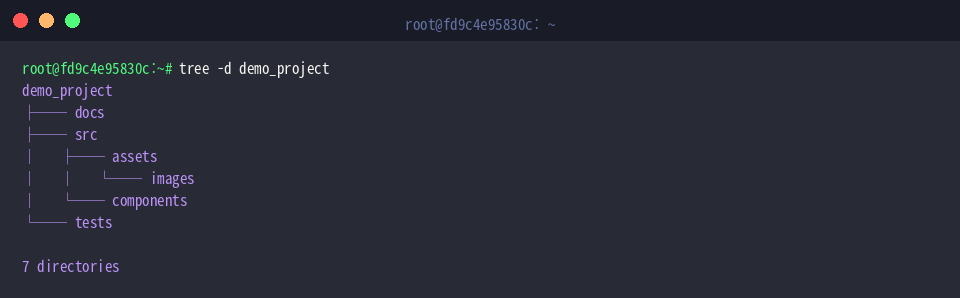
When the goal is understanding project architecture without clutter from individual assets, tree -d demo_project strips all regular files and presents only the directory scaffold.
Auditing Hidden Files (-a), Access Permissions (-p), and Sizes (-h)
Environment configurations and repository rules often rely on hidden dotfiles. Generate sample configuration targets using touch demo_project/.env demo_project/.gitignore.

Restrict read and write capabilities on the secret file to the file owner alone using chmod 600 demo_project/.env.

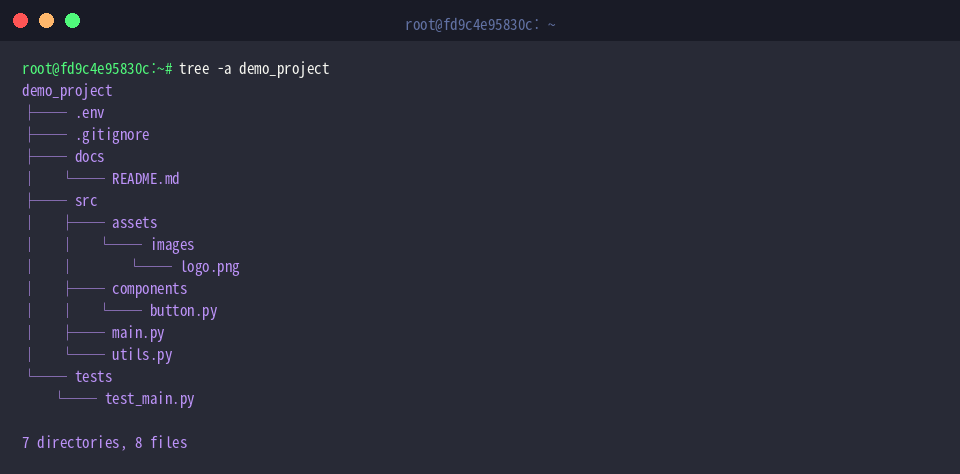
By default, dotfiles remain hidden during traversal. Running tree -a demo_project instructs the engine to traverse every single entry, bringing .env and .gitignore directly into view.
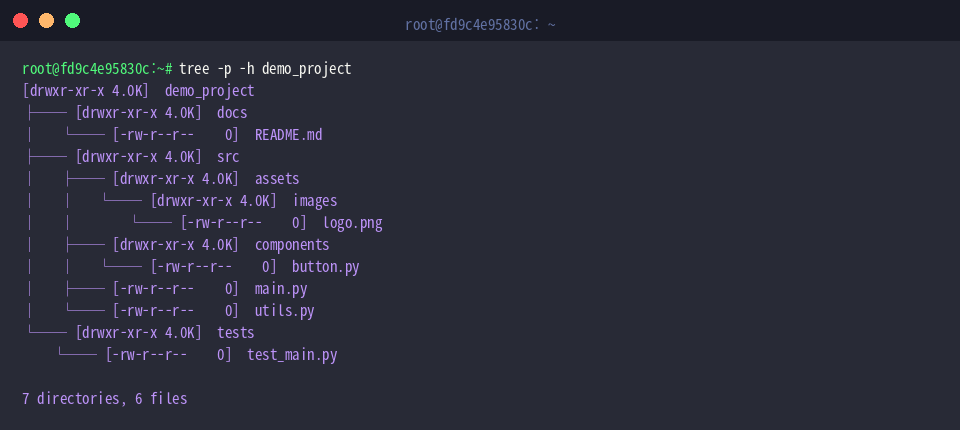
Combining permission inspection with human-readable storage units via tree -p -h demo_project turns the output into an instant filesystem audit tool, displaying POSIX mode strings alongside file weights.
Wildcard Filtering (-P, -I) and Exporting Interactive HTML (-H, -o)
Production workspaces frequently accumulate transient build artifacts. Simulate ephemeral data by touching temporary logs and scratch files with touch demo_project/temp.log demo_project/debug.tmp.

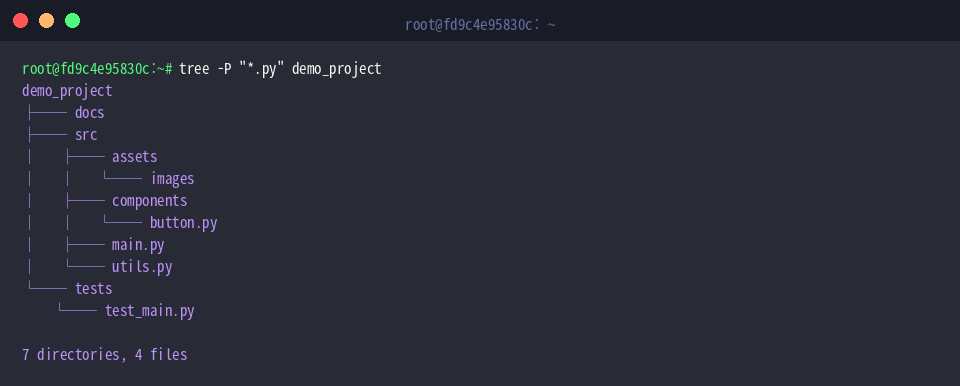
To isolate specific language runtimes, the include flag -P filters output to match specified globs. Running tree -P "*.py" demo_project highlights Python scripts while suppressing unrelated assets.
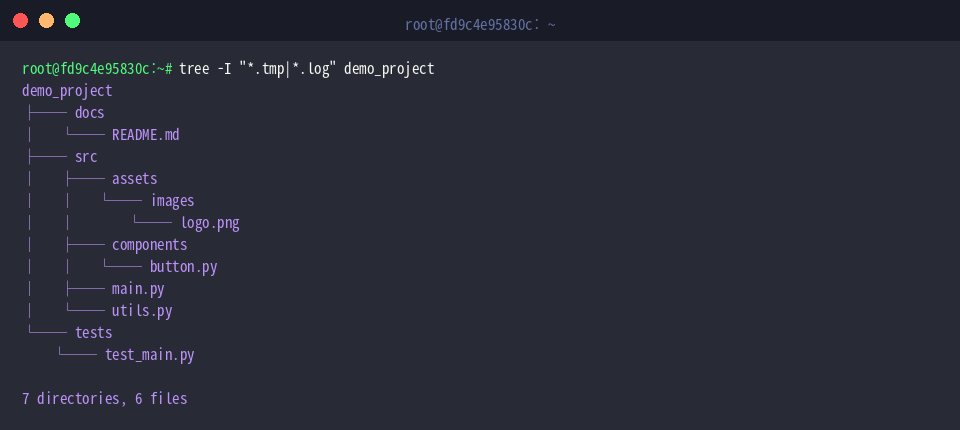
Conversely, clutter can be suppressed using exclusion syntax. Running tree -I "*.tmp|*.log" demo_project uses pipe-delimited pattern matching to omit extraneous log and cache clutter from the terminal display.
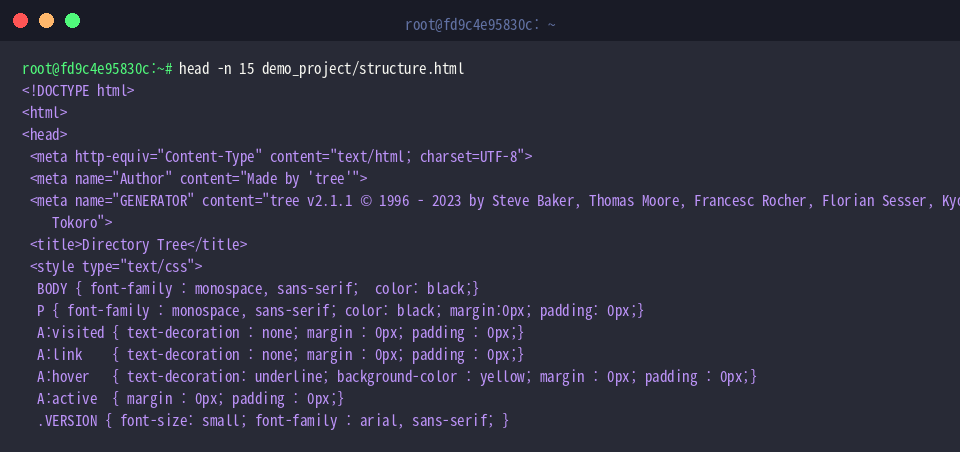
The utility can also export standalone web assets. Passing tree -H http://localhost -o demo_project/structure.html demo_project compiles the directory blueprint into an interactive HTML page with clickable hyperlinks anchored to the supplied base URL.

Inspecting the output document with head -n 15 demo_project/structure.html reveals well-formed semantic markup and CSS styling tailored for immediate browser rendering.
Mastering these flag combinations transforms tree from a simple terminal novelty into a dependable asset for code auditing, infrastructure onboarding, and automated technical documentation on Ubuntu systems.