


Overview
Managing ZIP archives on Ubuntu is a core skill for systems engineers and software developers. This guide walks through configuring the standard unzip package, listing archive contents safely without unpacking, isolating outputs to specific destination folders, and interpreting terminal output messages for streamlined troubleshooting and automation.
Installing the unzip Package and Preparing a Sandbox
To follow along with archive generation and extraction routines, ensure both zip and unzip utilities are present on your Ubuntu system.
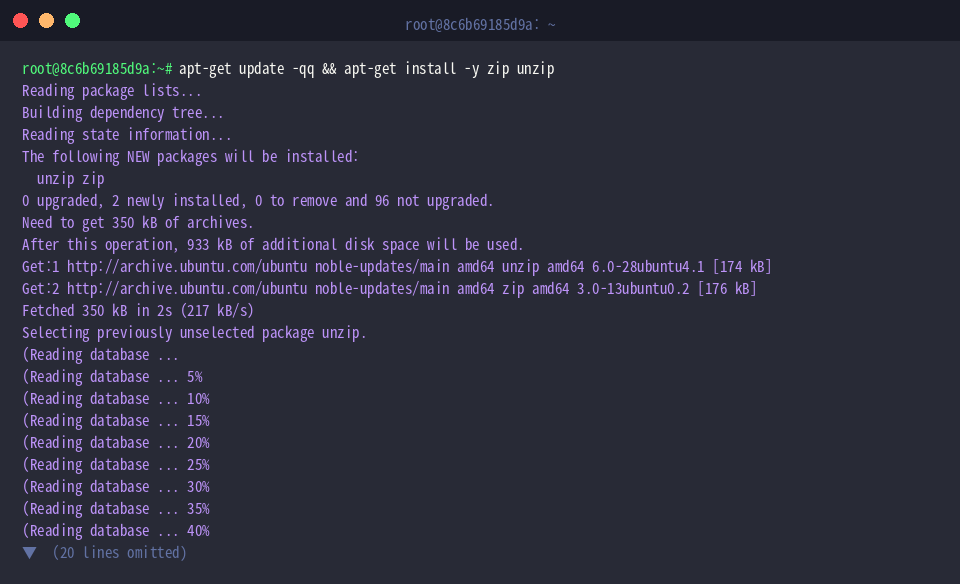
Check the installed software release and verify that the binary operates properly by executing unzip -v | head -n 3.
In Linux environments, unzip serves as the primary tool for testing, querying, and unpacking files stored in ZIP format.
⚙️ [Essential Flags]
-l : Displays the catalog of files enclosed within the archive without extracting them.-v : Produces an expanded diagnostic list detailing uncompressed sizes, compression algorithms, and ratios.-d : Routes all extracted contents into a chosen target directory.-q : Operates quietly by suppressing standard terminal output during the extraction process.-o : Overwrites any preexisting destination files without prompting for confirmation.-n : Protects existing local files by skipping extraction whenever naming conflicts occur.-t : Performs an archive integrity check by verifying internal file checksums without unpacking.

Initialize an isolated demonstration workspace containing a nested directory via mkdir -p ~/unzip_demo/docs && cd ~/unzip_demo.

Generate an initial sample text file in the root workspace with echo "Linux unzip test file 1" > file1.txt.

Populate the nested subdirectory with an additional payload using echo "Linux unzip test file 2" > docs/file2.txt.

Construct the sample archive to simulate real-world decompression workflows by running zip -r sample.zip file1.txt docs/.

Inspecting Archive Contents and Metadata Without Extracting
Navigate into your active demonstration directory with cd ~/unzip_demo.

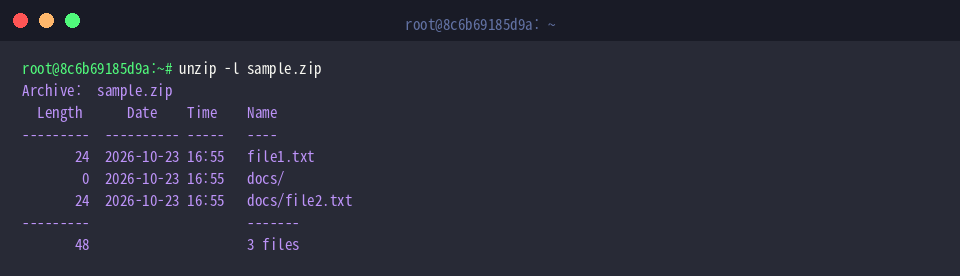
Before committing files to the filesystem, examine the archive structure and uncompressed byte footprints using unzip -l sample.zip.
The resulting summary outlines exact file sizes (Length), modification dates, relative path hierarchies, and cumulative file totals.
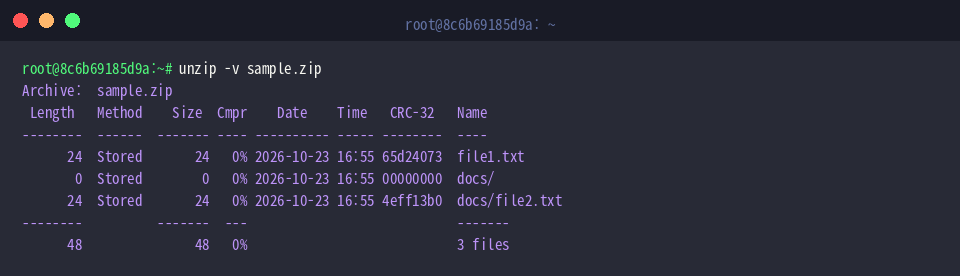
To review low-level technical parameters such as compression algorithms, reduced payload sizes, efficiency percentages, and CRC-32 checksums, execute unzip -v sample.zip.
The output presents an in-depth audit view showcasing algorithm types (Method) and compression ratios (Cmpr), enabling precise verification before extraction.
Standard Extraction and Targeting Specific Directories
Switch back to the working sandbox using cd ~/unzip_demo.

To prevent unwanted file scatter across your current path, unpack the archive cleanly into a dedicated destination folder via unzip sample.zip -d extracted_files.
The -d option automatically creates the extracted_files directory if missing, followed by extracting all enclosed files and directories under that path.

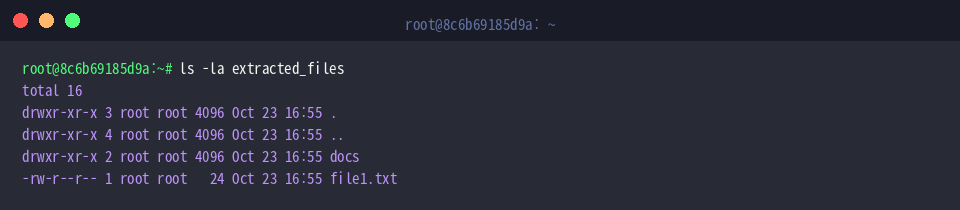
Verify that the target directory received the unpacked structure correctly by running ls -la extracted_files.
The terminal output confirms that file1.txt and the docs folder were both recreated while retaining their expected hierarchy.
To confirm that the decompression routine introduced no corruption, validate the document contents using cat extracted_files/file1.txt.
The original string prints to stdout completely intact, confirming an error-free extraction.

Overwrite Controls and Silent Mode Execution
Return to the central lab folder by running cd ~/unzip_demo.

In non-interactive environments where existing files must be updated automatically, bypass confirmation dialogues with unzip -o sample.zip -d extracted_files.
The system replaces matching files immediately while reporting individual file extraction status across the console.

When integrating extractions into CI/CD scripts or automated cron jobs, suppress verbose terminal logs using unzip -q sample.zip -d quiet_extracted.
Applying -q silences standard console messages, completing the extraction unobtrusively in the background.

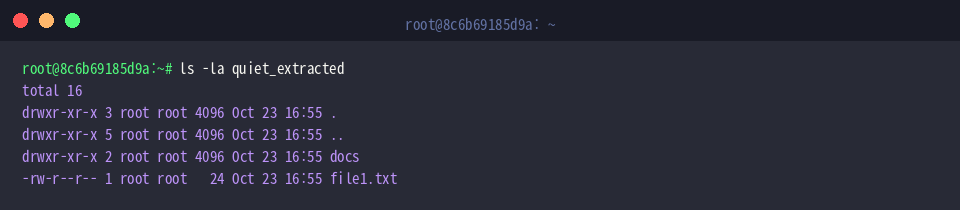
Confirm that the silent extraction populated the new folder as expected with ls -la quiet_extracted.
Listing the target path demonstrates that both file1.txt and the docs hierarchy unpacked seamlessly without requiring console logging.
You now have a solid command of the unzip utility in Ubuntu, from inspecting metadata to directing output destinations and controlling terminal verbosity. Incorporating these parameters into daily command-line sessions and shell scripts will significantly improve archive management productivity.