


Overview
The cp utility stands as an indispensable building block in daily Linux operations and shell automation. Beyond simple single-file duplication, modern systems administration demands a solid command of recursive tree cloning, strict metadata preservation with -a, differential syncs via -u, and automated backup rotation. This tutorial walks through real-world patterns to handle data safely and efficiently across Ubuntu environments.
Basic File Duplication and Real-Time Feedback (-v, -i)
To establish an isolated sandbox for testing, construct both source and destination directories before switching into the workspace using mkdir -p ~/cp_practice/src ~/cp_practice/dest && cd ~/cp_practice.

Populate a mock payload inside the source directory by running echo "Ubuntu cp command tutorial" > src/sample.txt.

At its foundation, cp clones data streams from one or more origins into a defined target path. Supplying the -v flag prompts the tool to provide immediate visual confirmation on stdout as transactions complete.
⚙️ [Key Options Reference]
-v : Verbose mode; displays every file transfer as it occurs.-i : Interactive safeguard; prompts before overwriting any pre-existing target file.-r : Recursive operation; traverses and mirrors entire folder hierarchies.-p : Attribute retention; preserves original ownership, timestamps, and mode bits.-a : Archive preset; bundles -d, -p, and -r to maintain symlinks and all metadata.-u : Update mode; transfers only when the source is newer or the destination is missing.-b : Backup safety; creates fallback copies of destination files before overwriting.
Execute a verbose copy of the text file into the target directory with cp -v src/sample.txt dest/sample_copy.txt.

Inspect the destination path using ls -l dest/sample_copy.txt to verify the payload reached its target intact.

Simulate a modification cycle by overwriting the source payload with updated text via echo "Updated content" > src/sample.txt.

Running cp with -u and -v checks modification timestamps, triggering an overwrite only when the origin carries more recent data. Because the source timestamp now leads the destination copy, the utility carries out the update and reports the operation.

Recursive Directory Cloning and Metadata Retention (-r, -a)
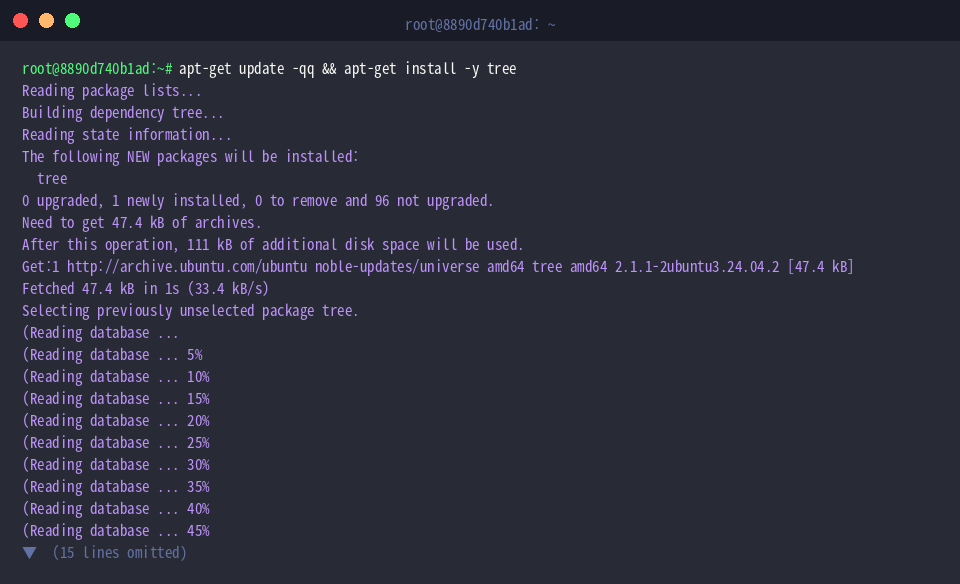
Visualizing nested structures is considerably easier with a graphical directory lister. Install the utility via apt-get update -qq && apt-get install -y tree.
Set up a simulated project layout containing both configuration and log subdirectories using mkdir -p ~/cp_practice/project/config ~/cp_practice/project/logs.

Write an environment definition into the configuration directory with echo "PORT=8080" > ~/cp_practice/project/config/app.env.

Generate an active service log entry by running echo "Service started" > ~/cp_practice/project/logs/app.log.

Duplicate the entire nested directory tree into project_backup using the standard recursive flag via cp -r ~/cp_practice/project ~/cp_practice/project_backup.

When exact permissions, ownership attributes, timestamps, and symbolic links must survive unchanged, deploy archive mode with cp -a ~/cp_practice/project ~/cp_practice/project_archive.

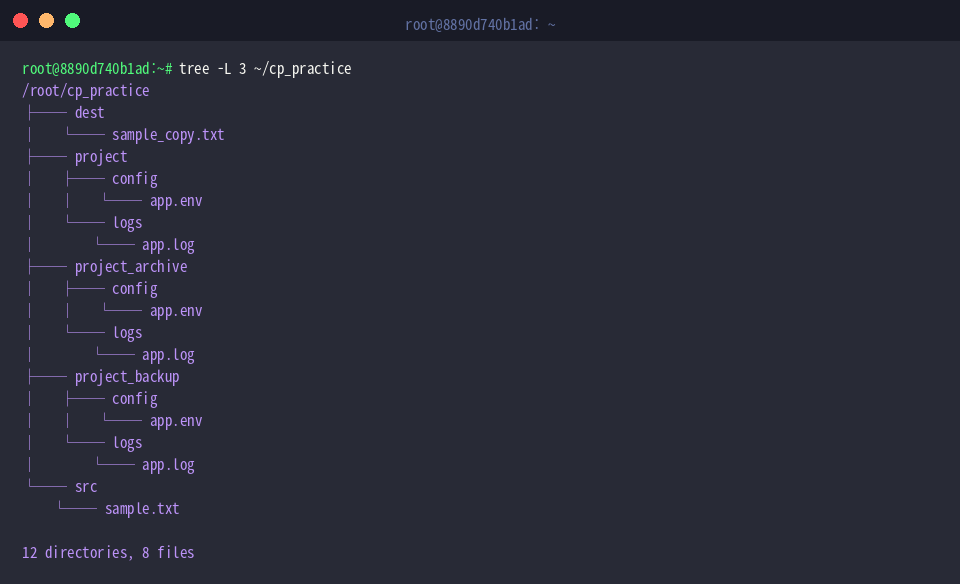
Review the resulting tree layout up to three tiers deep with tree -L 3 ~/cp_practice to confirm that all branches and nodes mirrored accurately.
Timestamp-Driven Syncs (-u) and Versioned Backups
Prepare an isolated subfolder for experimenting with automated backups via mkdir -p ~/cp_practice/backup_demo/dest.

Establish a baseline configuration payload using echo "Version 1.0" > ~/cp_practice/backup_demo/config.json.

Perform the initial sync to position a copy of the configuration within the destination directory using cp ~/cp_practice/backup_demo/config.json ~/cp_practice/backup_demo/dest/config.json.

Introduce an intentional delay to guarantee a newer timestamp, then bump the revision string using sleep 1 && echo "Version 2.0" > ~/cp_practice/backup_demo/config.json.

By pairing the update flag with verbose output via cp -u -v ~/cp_practice/backup_demo/config.json ~/cp_practice/backup_demo/dest/config.json, the command evaluates file ages and writes the newer version directly over the older destination payload.

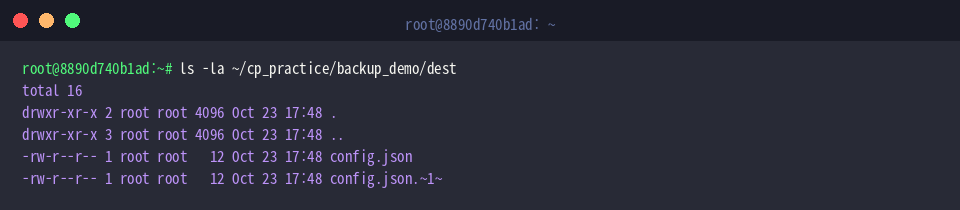
To prevent accidental data loss during subsequent overwrites, enable numeric versioning with cp --backup=numbered -v ~/cp_practice/backup_demo/config.json ~/cp_practice/backup_demo/dest/config.json. This archives the existing destination file as config.json.~1~ prior to placing the fresh copy.

Validate the directory contents by running ls -la ~/cp_practice/backup_demo/dest. The active configuration file now sits alongside the numbered fallback snapshot.
Batch Transfers and Target-First Positioning (-t)
Set up a receiving directory designated for multi-file transfers using mkdir -p ~/cp_practice/bulk_demo/target.

Generate three distinct log files simultaneously using touch ~/cp_practice/bulk_demo/report1.log ~/cp_practice/bulk_demo/report2.log ~/cp_practice/bulk_demo/report3.log.

Inverting conventional operand order, the -t switch lets you declare the destination directory upfront. This design works seamlessly with globbing and shell expansion tools: cp -v -t ~/cp_practice/bulk_demo/target ~/cp_practice/bulk_demo/*.log.

Confirm that every matched log file migrated to the folder by issuing ls -l ~/cp_practice/bulk_demo/target.

After completing the exercises, reclaim system storage and remove temporary files with rm -rf ~/cp_practice.

Understanding the nuance between standard copying and archive-level replication protects data integrity across critical Linux environments. Incorporating flags like -a, -u, and --backup into day-to-day administrative routines shields systems from accidental overwrites while making terminal workflows faster and more predictable.