


Overview
Diagnosing network anomalies and inspecting packet flows are foundational skills for any Linux systems administrator. While digging through exhaustive man pages can be tedious, this hands-on walkthrough cuts straight to the core capabilities of tcpdump. You will learn how to discover network adapters, filter real-time traffic streams, and export raw packet payloads into PCAP files for deep inspection.
Installing tcpdump & Discovering Network Interfaces
To set up our packet analysis workbench, we first provision the necessary utilities by pulling tcpdump alongside curl via the package manager.
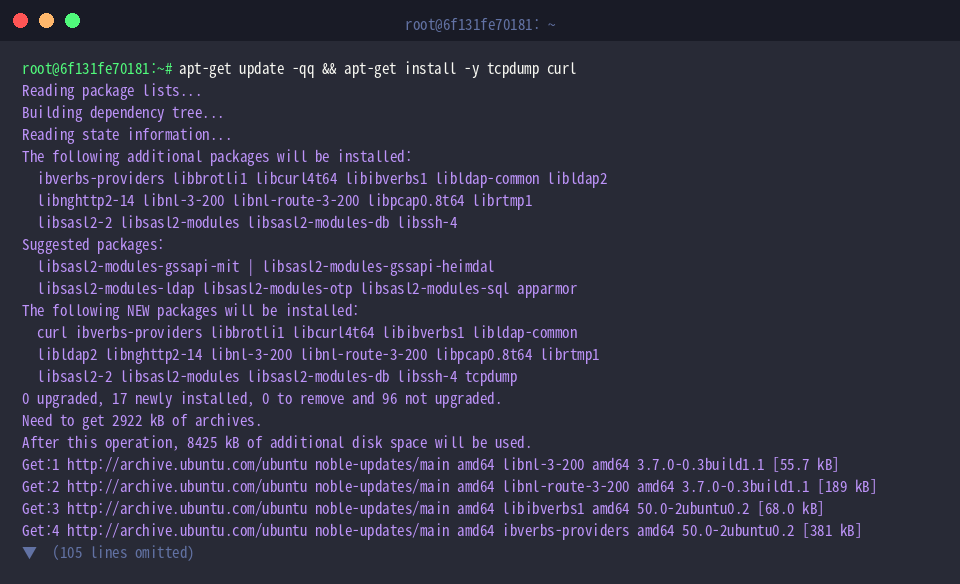
Verify the operational readiness of the utility and its underlying packet interception engine by executing tcpdump --version.
In modern Linux environments, tcpdump serves as the premier command-line packet analyzer for capturing live interface traffic and evaluating network protocols in real time.
⚙️ [Key Command-Line Flags]
-i : Selects the target network interface for traffic monitoring.-n : Disables DNS name resolution, showing numeric IP addresses directly to reduce overhead.-nn : Suppresses resolution of both hostnames and port numbers, outputting raw numerical endpoints.-c : Terminates the capture session automatically once the specified packet quota is reached.-v : Enables verbose decoding (e.g., IP TTL, ID, and header flags); stack as -vv or -vvv for deeper inspection.-w : Serializes raw packet data directly into a PCAP file compatible with Wireshark.-r : Ingests and inspects captured network dumps from an offline PCAP file.-A : Prints the packet payload in human-readable ASCII text.-X : Displays both hexadecimal bytes and corresponding ASCII text side-by-side for protocol headers and payloads.-D : Queries the kernel and lists all available capture-ready network interfaces.

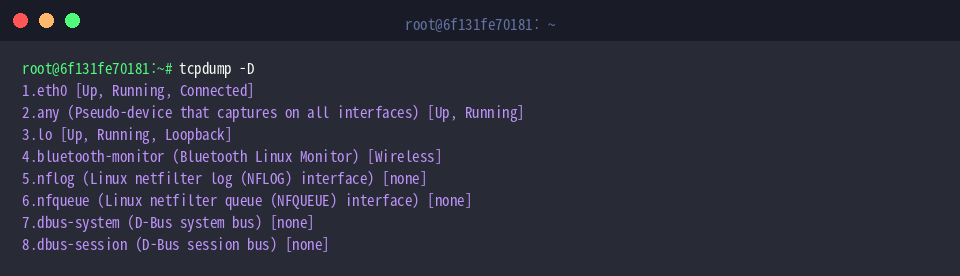
Executing tcpdump -D queries the host environment to reveal every interface available for capture, complete with interface indexes and operational states.
This output highlights production interfaces such as eth0, the pseudo-device any for monitoring all active interfaces simultaneously, and the local loopback adapter lo. Any of these identifiers can be passed as an argument to the -i flag.
Capturing Local Loopback Traffic
To generate predictable traffic on the loopback adapter for our initial test, we launch an asynchronous ICMP probe in the background using ping -c 4 127.0.0.1 > /dev/null 2>&1 &.

The command tcpdump -i lo -c 4 -n monitors the loopback interface (lo), capturing precisely four packets (-c 4) while suppressing DNS lookups (-n).
The trace confirms the bidirectional exchange of ICMP echo request and reply datagrams between 127.0.0.1 endpoints, reporting microsecond-precision timestamps, ICMP sequence IDs, and total byte lengths.

Filtering Live Traffic by Port and Protocol
To simulate encrypted web traffic for evaluation, we initiate an outbound HTTPS request using curl -s https://example.com > /dev/null 2>&1 & in the background.

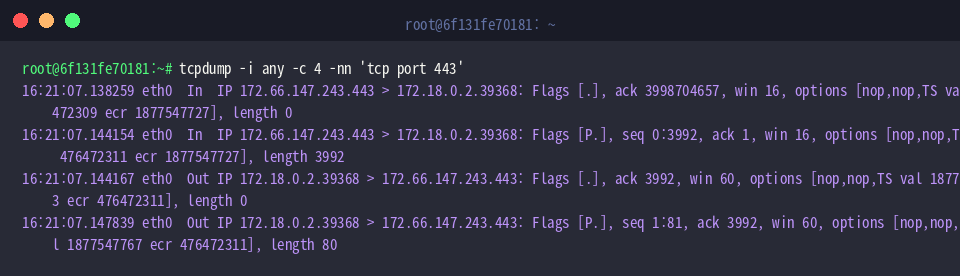
By running tcpdump -i any -c 4 -nn 'tcp port 443', we instruct the sniffer to listen across all network interfaces (-i any), keep both IP addresses and port numbers numeric (-nn), and capture four packets (-c 4) matching the BPF filter expression 'tcp port 443'.
The resulting console output shows outbound and inbound TLS handshakes between our container host (172.18.0.2) and Cloudflare’s edge endpoint (172.66.147.243.443), displaying TCP control flags, relative sequence/acknowledgment numbers, and TCP window sizes.
Next, we generate outbound diagnostic probes targeting Google’s public DNS resolver with ping -c 2 8.8.8.8 > /dev/null 2>&1 &.

Running tcpdump -i any -c 2 -n 'icmp' captures the next two frames (-c 2) across all interfaces (-i any) matching the ICMP protocol filter ('icmp') without resolving hostnames (-n).
As verified in the terminal output, the packet trace successfully isolates the ICMP echo request sent from 172.18.0.2 to 8.8.8.8 alongside the returning echo reply, complete with request IDs (id), sequence numbers (seq), and IP payload lengths.

Exporting PCAP Dumps & Analyzing Packet Payloads
To evaluate offline packet persistence, we spin up another background loopback ping stream with ping -c 3 127.0.0.1 > /dev/null 2>&1 &.

The command tcpdump -i lo -c 3 -w /tmp/traffic_sample.pcap captures three loopback frames (-c 3) from lo and serializes the raw bitstream into /tmp/traffic_sample.pcap.
Bypassing terminal standard output and writing directly to disk preserves full frame fidelity, creating clean dump files ready for archival or advanced forensic analysis in tools like Wireshark.

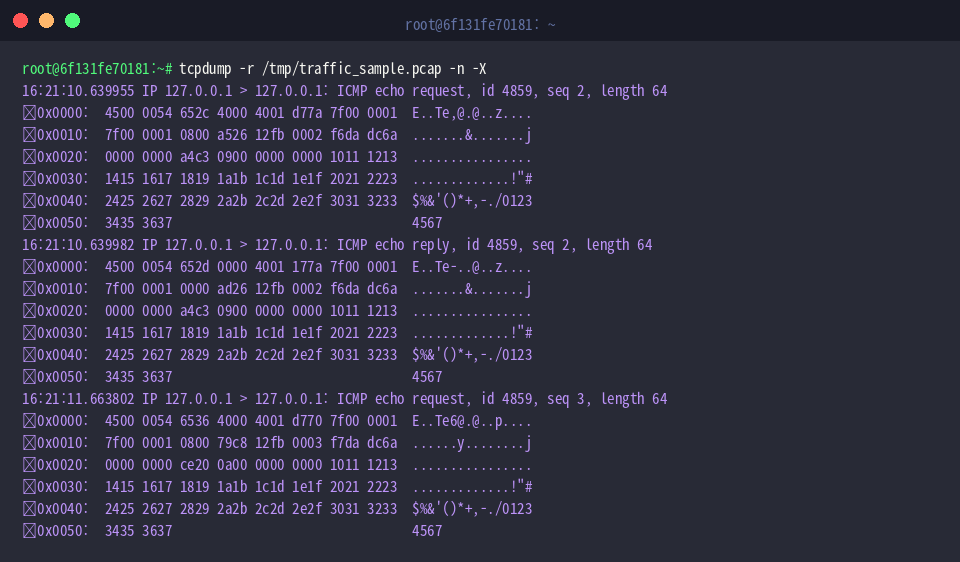
To inspect the captured session offline, tcpdump -r /tmp/traffic_sample.pcap -n -X loads the dump file (-r), suppresses hostname resolution (-n), and renders headers alongside raw payload data in dual Hex/ASCII representation (-X).
This split hex-and-ASCII view makes it straightforward to correlate low-level network headers with application-layer byte sequences for granular protocol troubleshooting.
Once analysis is complete, clean up the temporary capture file from the filesystem with rm -f /tmp/traffic_sample.pcap.

This concludes our practical tour of packet inspection and traffic diagnostics using tcpdump on Ubuntu.
Mastering these essential flags and Berkeley Packet Filter (BPF) syntaxes equips you to pinpoint network bottlenecks, isolate service failures, and streamline troubleshooting across modern Linux deployments.