


Overview
Ubuntu delegates /bin/sh to dash (Debian Almquist Shell), an ultra-lean, standards-compliant POSIX shell architected specifically for rapid startup and minimal system overhead. This tutorial explores the architecture and operational behavior of dash, contrasts its runtime efficiency with bash, and demonstrates how to craft robust, portable POSIX automation scripts directly from the terminal.
Inspecting the Default /bin/sh Symlink and Dash Installation
Ubuntu routes standard system scripts through /bin/sh. To reveal which shell binary backs this interface, inspect the filesystem pointer with ls -l /bin/sh. The listing confirms that /bin/sh symlinks directly to dash.

Confirm that the Debian Almquist Shell package is correctly registered in the APT database by querying installed packages with dpkg -l | grep dash. An ii status flag in the terminal output indicates that the package is cleanly installed and configured.

Engineered for strict POSIX conformance and low resource usage, dash omits heavy interactive features in favor of lightning-fast execution. Execute a test one-liner directly via dash -c to verify runtime behavior.
⚙️ [Key Command Flags]
-c : Evaluates and executes the subsequent string expression as shell input.-s : Instructs the shell to process commands received from standard input (stdin).-e : Aborts execution immediately whenever any command yields a non-zero exit code.-u : Generates a fatal error and terminates if any undefined variable is expanded.-n : Validates script syntax without evaluating or running the statements.-x : Traces execution by printing each evaluated command and argument to standard output/error.

Exploring Built-in Commands and Variable Handling in Dash
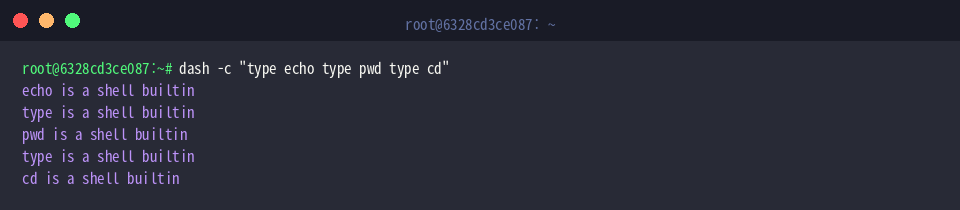
Invoking external disk binaries incurs process-forking penalties. To confirm whether dash handles routine utility calls internally, run dash -c "type echo type pwd type cd". The resulting output confirms that echo, type, pwd, and cd all execute as built-ins, eliminating subshell creation and accelerating script performance.
Variable assignment in dash complies strictly with POSIX specifications. Test variable declaration and expansion using dash -c "test_var='Linux Dash Practice'; echo \$test_var". The assigned text string binds to test_var and prints to standard output as expected.

To identify the running shell binary from within an active session, inspect the $0 parameter with dash -c "echo \$0". The output returns dash, verifying that commands are running directly under the dash interpreter.

Writing and Running POSIX-Compliant Dash Scripts
Begin by provisioning a clean test workspace and moving into it with mkdir -p ~/dash_practice && cd ~/dash_practice.

Next, create a simple script named posix_test.sh that leverages POSIX-standard arithmetic syntax and a conventional while loop. Setting #!/bin/dash on the first line explicitly binds the execution runtime to dash.
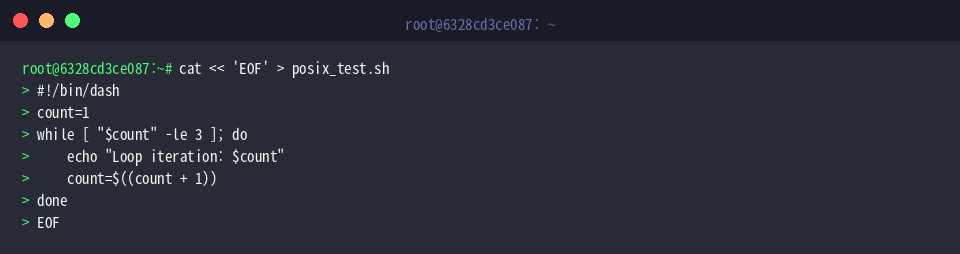
Before launching the newly created script, apply executable permissions using chmod +x posix_test.sh.

Verify the script’s portability and logical flow by running ./posix_test.sh. The loop executes three sequential passes, printing each incremental index cleanly without relying on bash-specific syntax (“bashisms”).

Performance Benchmark: Comparing Dash vs. Bash Execution Speeds
Prepare to benchmark loop execution performance by navigating back to the project folder with cd ~/dash_practice.

To highlight interpreter efficiency differences during intensive iteration, assemble a synthetic load test script named bench.sh that cycles through 50,000 arithmetic increments.
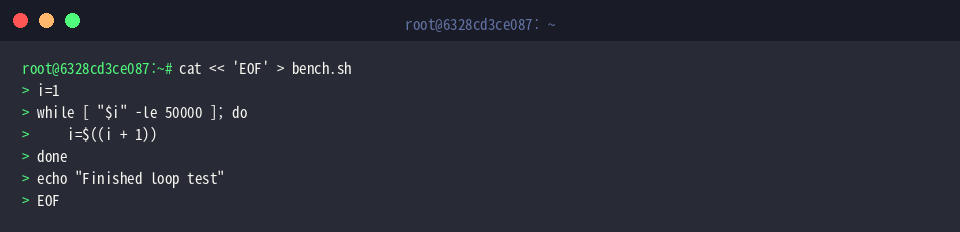
Evaluate bash execution times first by profiling the script with time bash bench.sh. Once the iterative loop finishes, the time utility reports the total elapsed real, user, and system duration.

Now benchmark the identical workload under the lightweight Debian Almquist Shell using time dash bench.sh. Free from the architectural overhead of interactive shell features, dash processes the 50,000 iterations significantly faster than bash.

This practical walkthrough highlights why Ubuntu relies on dash as its underlying system shell. Leveraging dash for non-interactive automation conserves system CPU cycles and ensures broad cross-platform portability across POSIX-compliant environments.