


Overview
Modern Linux desktop environments and user-space background daemons rely heavily on the D-Bus session bus to orchestrate components dynamically. However, services spawned via auto-activation often miss critical variables configured inside your terminal profile or desktop session manager. In this hands-on guide, we explore how dbus-update-activation-environment bridges this configuration gap, propagating active runtime variables across D-Bus activation environments and systemd user instances to prevent session state mismatches.
Verifying Package Prerequisites and Command Syntax
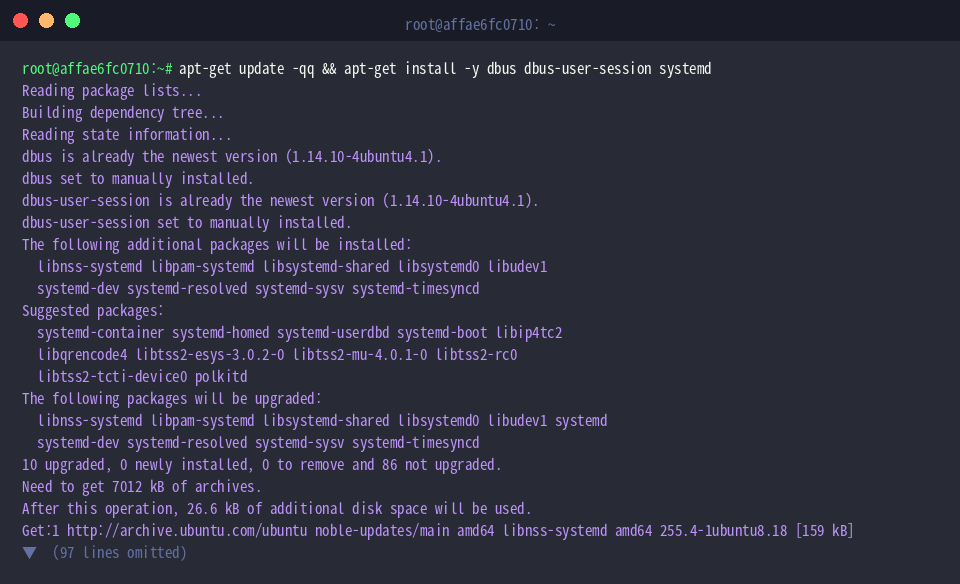
Ensure your Ubuntu installation includes the necessary core IPC and session packages—specifically dbus, dbus-user-session, and systemd.
Verify that the target executable is present within /usr/bin by running the standard binary locator:

Examine the built-in syntax reference and available configuration flags using --help.
The primary function of dbus-update-activation-environment is passing session-level parameters into the activation context used by D-Bus daemons, ensuring synchronized state across desktop processes.
⚙️ [Key Options]
--all : Injects every variable currently defined in the calling shell directly into the D-Bus activation registry.--systemd : Pushes updated variables simultaneously to both the D-Bus activation namespace and the systemd user manager (systemd --user).--verbose : Prints detailed progress and diagnostic messages during the update sequence.--help : Prints comprehensive CLI usage instructions and parameter descriptions.--version : Outputs software release and version details.

Exporting and Assigning Individual Variables
To demonstrate targeted variable propagation, assign a sample configuration parameter named APP_ENV with the value production in your active shell:

Define an accompanying debugging flag, setting APP_DEBUG to false:

Supply both variable names to dbus-update-activation-environment APP_ENV APP_DEBUG to inject their values into the D-Bus activation context.
Any services subsequently launched via D-Bus activation will inherit these configuration values automatically.

You can also assign parameters directly without pre-exporting them in the current shell by providing key-value pairs such as CUSTOM_PORT=8080:

Synchronizing with systemd User Managers via –systemd
Standard desktop sessions manage background daemons through user-level systemd instances alongside D-Bus. Initialize a sample token variable, SERVICE_TOKEN, to test dual-subsystem registration:

Specifying the --systemd flag broadcasts SERVICE_TOKEN to both the D-Bus session registry and the systemd --user execution manager.
This ensures unified variable resolution across activated D-Bus utilities and user-managed systemd units.

Query the systemd user manager with systemctl --user show-environment to confirm that the updated token was received successfully:

Real-World Use Case: Updating Display and Desktop Session States
When configuring custom window managers, nested display servers, or remote desktop forwarding, graphical session pointers often fail to propagate to user daemons. Set the standard X11 display identifier:

Specify the corresponding Wayland socket descriptor for compositors using the modern display protocol:

Set the active desktop identifier so GUI toolkits and portal services apply appropriate session behaviors:

Execute dbus-update-activation-environment --systemd DISPLAY WAYLAND_DISPLAY XDG_CURRENT_DESKTOP to sync all three parameters across D-Bus and systemd simultaneously.
This guarantees that background utilities, notification handlers, or keyring agents started by either manager can locate and interact with the active graphical session without missing display errors.

Audit the shell environment using env | grep -E '^(DISPLAY|WAYLAND_DISPLAY|XDG_CURRENT_DESKTOP)=' to ensure the values match the expected state:

Using dbus-update-activation-environment effectively eliminates one of the most common causes of silent failures in Linux user sessions—unpropagated environment variables in dynamically spawned background processes. Leverage this utility whenever troubleshooting headless workflows, desktop portals, or custom display sessions.