


Introduction
Managing systemd unit activation states within Debian and Ubuntu packaging workflows demands specialized tooling. This guide explores the architecture and operation of deb-systemd-helper, the foundational utility underlying maintainer scripts. By building a custom dummy service from scratch, you will step through the unit lifecycle—handling enable, was-enabled, disable, and purge operations to understand how system services are reliably coordinated at the package level.
Verifying Package Installation and Core Options
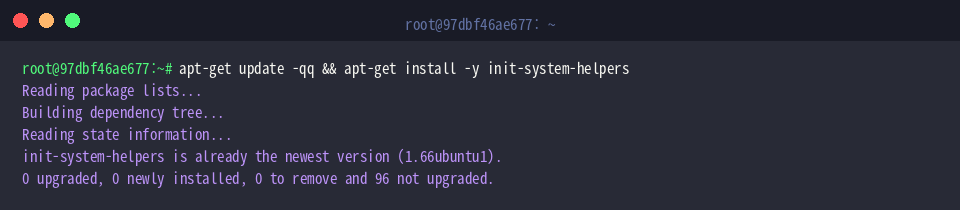
The utility ships as part of the init-system-helpers package on Debian-derived distributions. Begin by refreshing your local repository index and ensuring the package is installed:
Next, verify that the binary resides in the system’s standard execution path (/usr/bin):

Now, inspect the built-in manual and flags by invoking the --help switch:

Unlike standard interactive commands like systemctl, deb-systemd-helper is tailored specifically for Debian maintainer scripts (dpkg maintscripts). It enforces system packaging policies, preventing state conflicts and respecting local administrative overrides when packages install, update, or remove unit files.
⚙️ Key Flags and Subcommands:
--quiet: Suppresses standard output messages, reporting errors only.--force: Overrides state inconsistency warnings to proceed with the action.enable: Creates the appropriate symlinks to activate a service for target-based boot execution.disable: Revokes the target symlinks, preventing the service from launching automatically.purge: Strips all recorded state-tracking records associated with the service unit.mask: Blocks manual and automatic activation by linking the unit to/dev/null.unmask: Lifts an existing mask, re-enabling service activation workflows.was-enabled: Evaluates whether the unit had previously been configured in an enabled state.
Creating a Dummy Test Service and Enabling It
Prepare the primary systemd unit storage directory before deploying the test configuration:

Next, create a mock oneshot unit named demo-helper.service under /lib/systemd/system/:

With the definition in place, invoke deb-systemd-helper to enable the newly created service:

This command registers the unit according to Debian system policies and provisions the required symlinks within the target hierarchy. Verify that the symlink has been placed under the multi-user.target.wants directory:

Inspecting Unit State and Disabling the Service
Maintainer scripts frequently inspect whether a unit was previously active before altering its state. You can verify this status using the was-enabled subcommand:

Because the command returns an exit code of 0 when active, the appended echo command confirms that the service is currently enabled.
Next, toggle the service off by running the disable command:

This operation detaches the target symlinks and records the modification in state files, preventing the daemon from starting on subsequent boots.
Re-test the state using the conditional OR (||) operator to capture the non-zero exit status:

As expected, was-enabled produces a failure exit code, triggering the fallback notification. Confirm that the target symlink has been removed from the filesystem:

The missing file error confirms that the link was purged completely.
Purging State Data and Tearing Down Test Files
When a package is purged from the OS, any tracking artifacts left behind by helper tools should also be eradicated. Execute the purge subcommand to clean up the state tracking registry:

Now, delete the temporary unit file created earlier:

Instruct systemd to reload its unit dependency tree and flush cached unit definitions:

Finally, print a confirmation message verifying that the workspace is returned to its clean state:

Through this walkthrough, we explored how Debian and Ubuntu manage service registration seamlessly behind the scenes with deb-systemd-helper. Mastering these commands provides deep insight into packaging mechanics and ensures robust automation when writing deployment or packaging scripts.